Error logging in with Management Studio
Resolve the login error in SSMS by pressing F7, remove the 'Collation' in Object Explorer Details and refresh Databases.
If you are using Server Management Studio, with the default settings you will not be able to see your database on the server. This is due to a minor bug in Server Management Studio that occurs as a result of the new Object Explorer. With the default settings you will be presented with the following error message:
Failed to retrieve data for this request. (Microsoft.SqlServer.Mangement.Sdk.Sfc)

Additional information:
An exception occurred while executing a Transact-SQL statement or batch.
(Microsoft.SqlsServer.ConnectionInfo)

The server principal “username_xx” is not able to access the database “database_xx_db” under the current security context. (Microsoft SQL Server, Error: 916)
The problem can be resolved by selecting “Databases” in Server Management Studio and pressing “F7”.
This will display “Object Explorer Details” in the pane on the right. Right‑click in the top rows, highlighted in red in the image below, to deselect the “Collation” view.
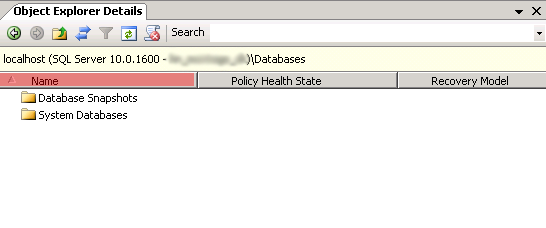
Then select “Databases” again and a refresh of the list will show the databases on the server.
Article from the support category: Microsoft SQL Server
