Setting up email on iPad
How to set up your Simply‑mail on iPad via Settings → Passwords & Accounts with mail.simply.com and smtp.simply.com.
Tip: You can conveniently download the Apple configuration for your mail account at https://www.simply.com/ios/
This guide assumes you have already set up your e‑mail account via the “E‑Mail” menu item, which you can find in our Control Panel.
-
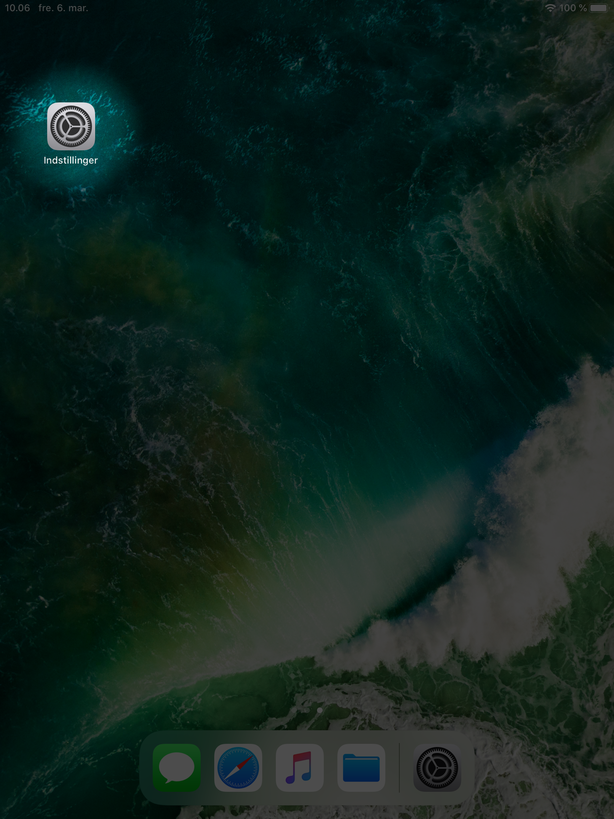
Open Settings on your iPad.
-
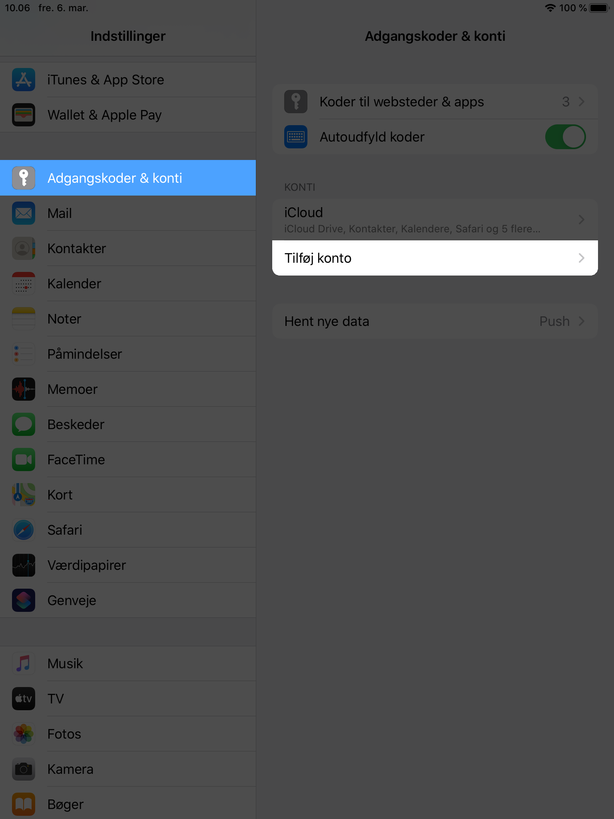
Tap Passwords & Accounts and select Add Account.
-
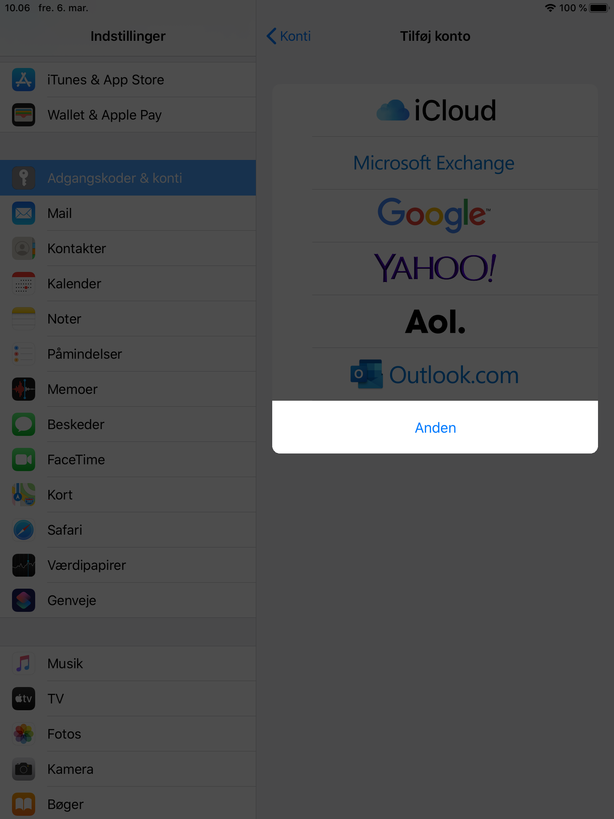
Choose Other.
-
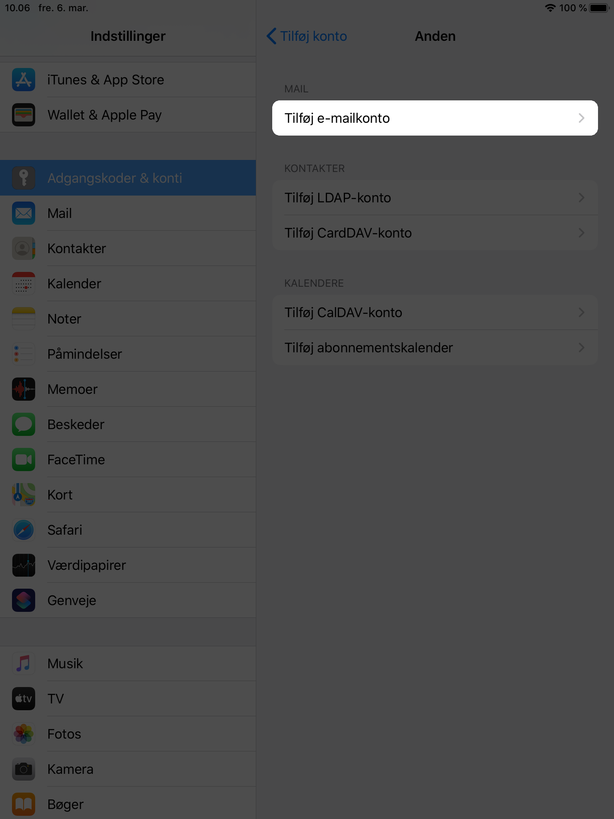
Select Add Mail Account.
-
Enter the email address and its corresponding password, as well as an optional name and description
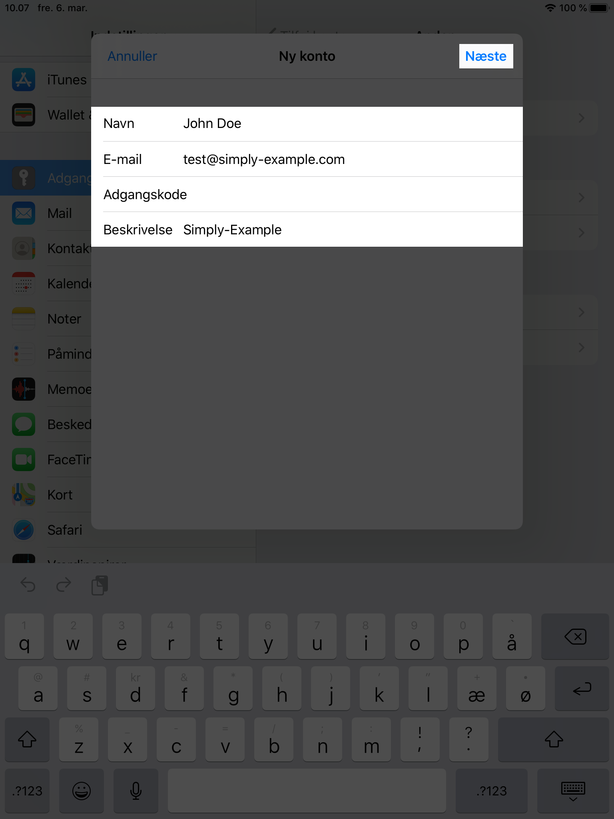
-
Under “Incoming Mail Server” enter the following settings:
-
Host name:
mail.simply.com -
Username: The email address itself
-
Password: The email address password
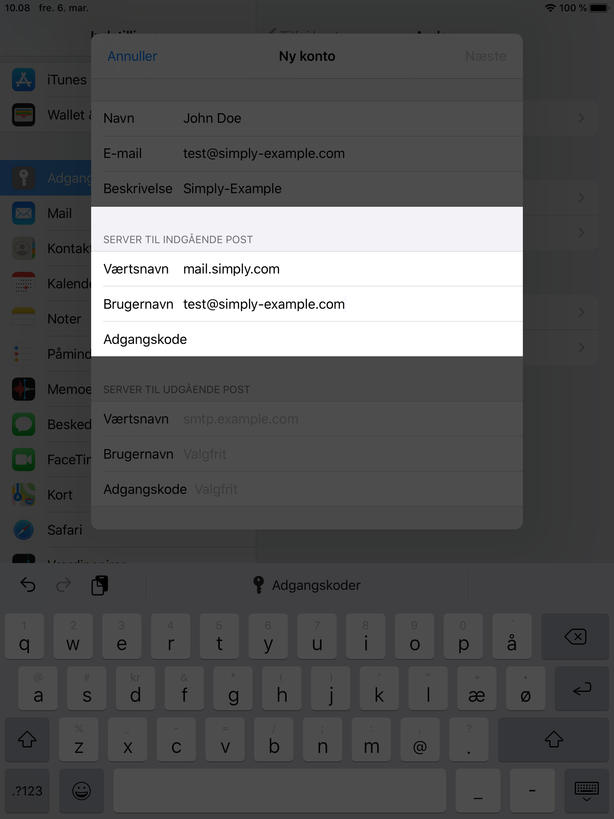
- Under “Outgoing Mail Server” enter the following settings:
-
Host name:
smtp.simply.com -
Username: The email address itself
-
Password: The email address password
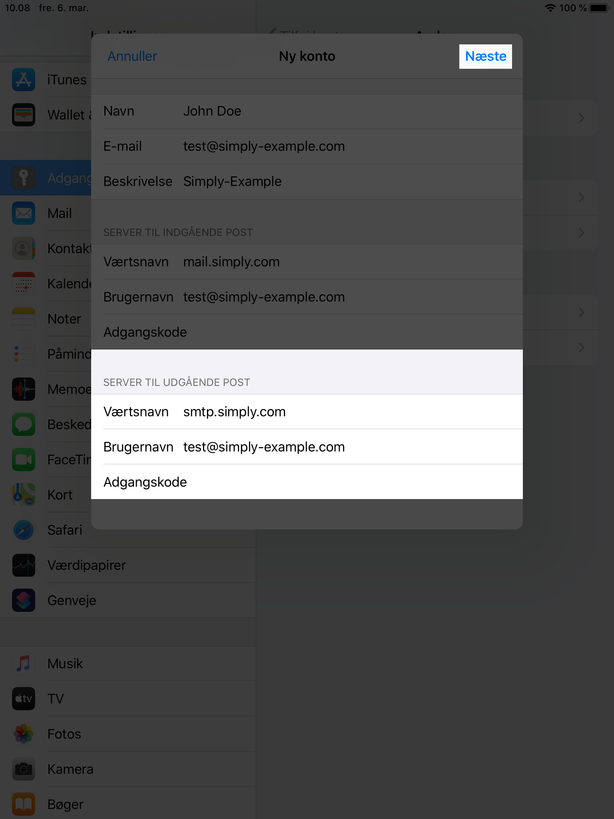
IMPORTANT: Username and password are not optional despite what it says.
-
Tap Save.
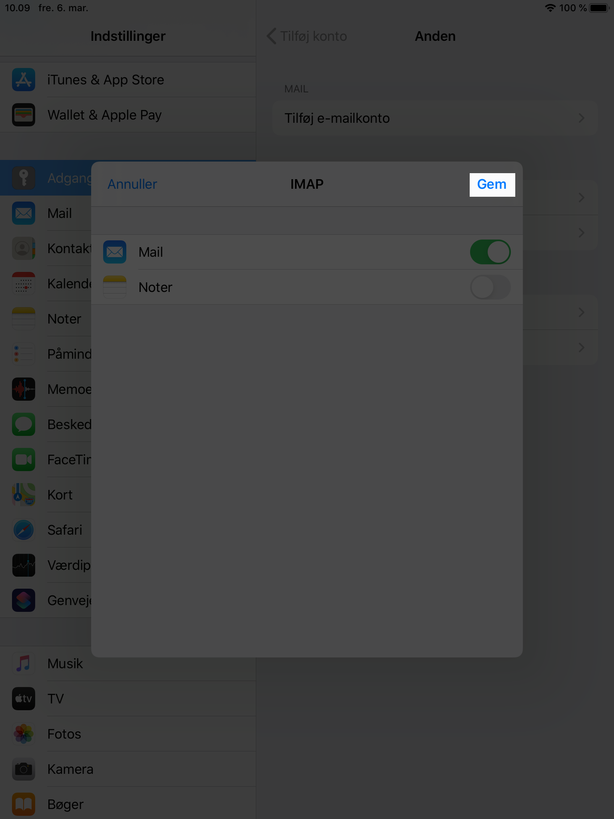
Article from the support category: Mail
