Setting up mail on iPhone (iOS - automatic setup)
Follow the guide at simply.com/ios to automatically configure your e‑mail on iPhone via a profile installation.
When you want to set up your e‑mail account on an iPhone, you can benefit from using our Apple setup.
The iPhone tool helps you automatically configure your mail, so you avoid manual configuration of server settings.
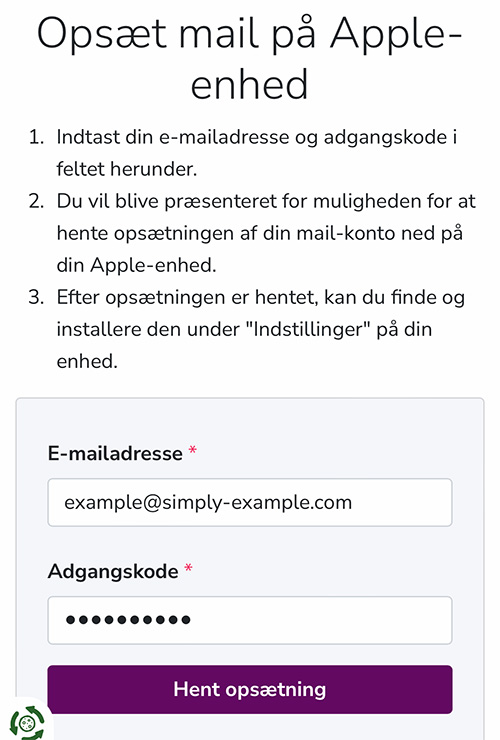
1. Go to https://www.simply.com/ios/ and enter the login details for your mail account.
2. Tap “Download setup”
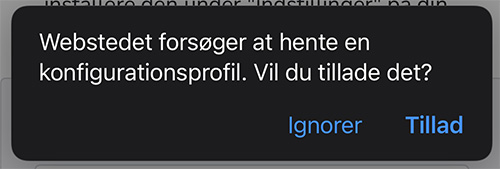
3. Choose “Allow”
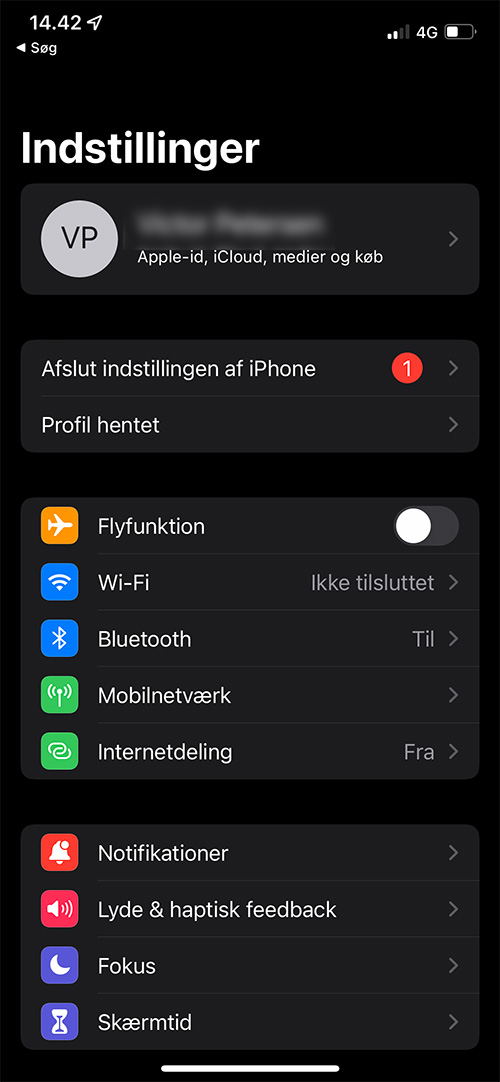
4. Open the settings on your iPhone and select “Profile downloaded”
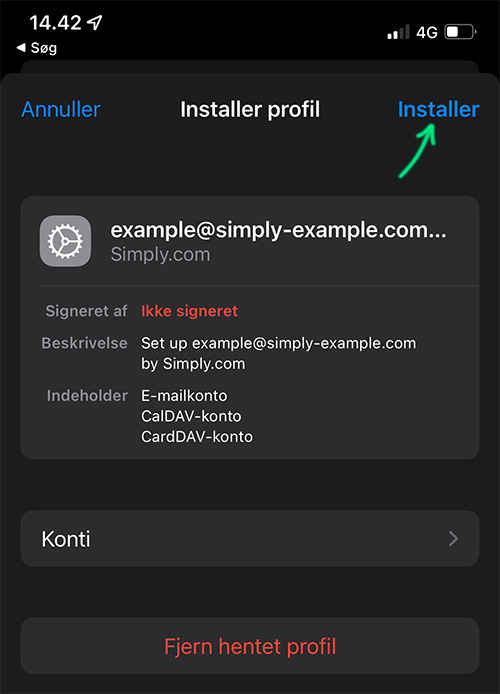
5. Tap “install”
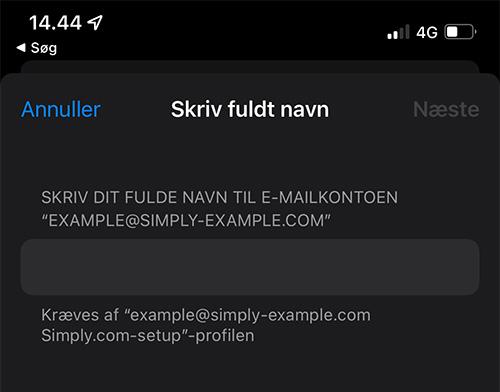
6. Enter the name that should appear when others receive emails from you. For example, Sofie Hansen
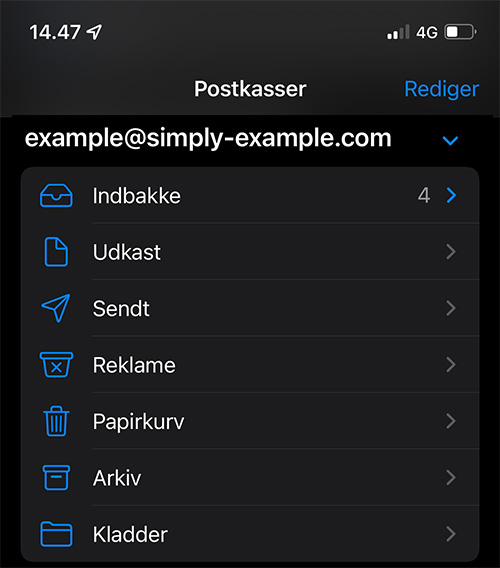
7. There you go! You have now finished setting up your mail; you can find it in the Mail app on your iPhone.
If you wish to remove the profile, this can be done under Settings > General > VPN & Device Management.
Article from the support category: Mail
