Setting up mail in Mac Mail (macOS)
How to set up your Simply.com email in Mac Mail on macOS
Tip: You can conveniently download the Apple configuration for your mail account at https://www.simply.com/ios/
This guide assumes you have already set up your e‑mail account via the “E‑mail” menu item, which you can find in our Control Panel.
-
Open “Mail”.
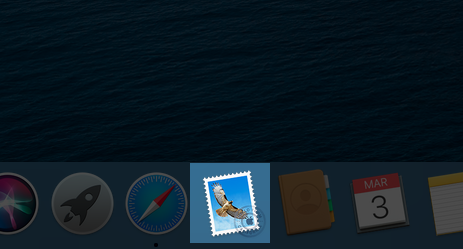
-
Tap “Mail” at the top and select Accounts...
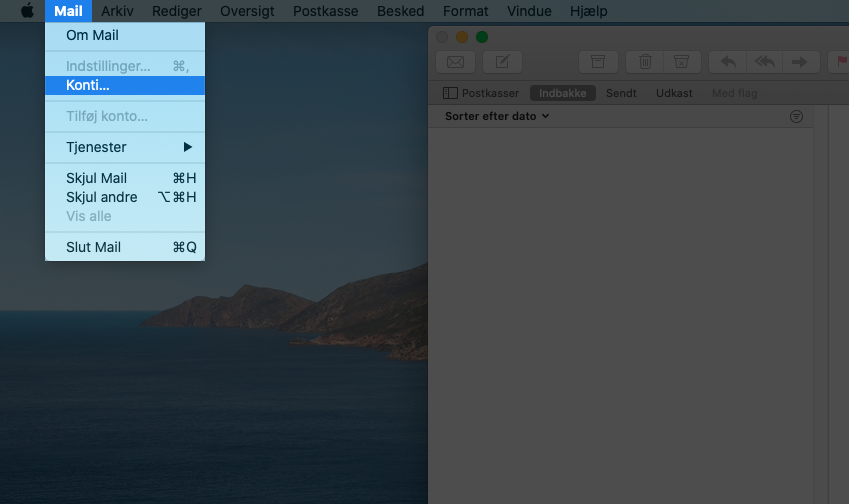
-
Choose Add other account...".
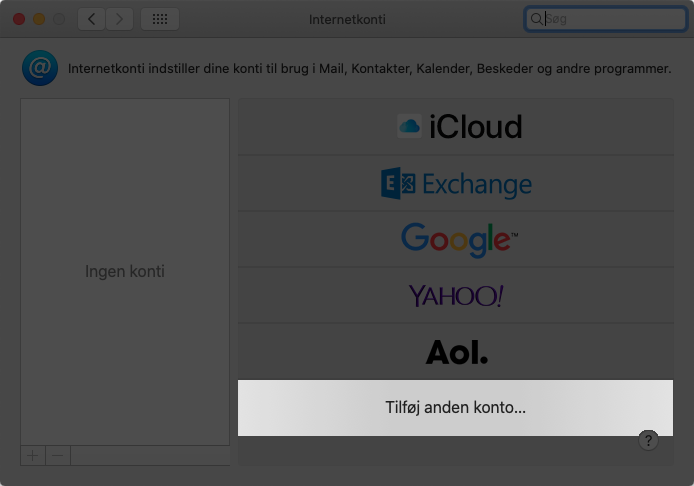
-
Tap Mail Account.
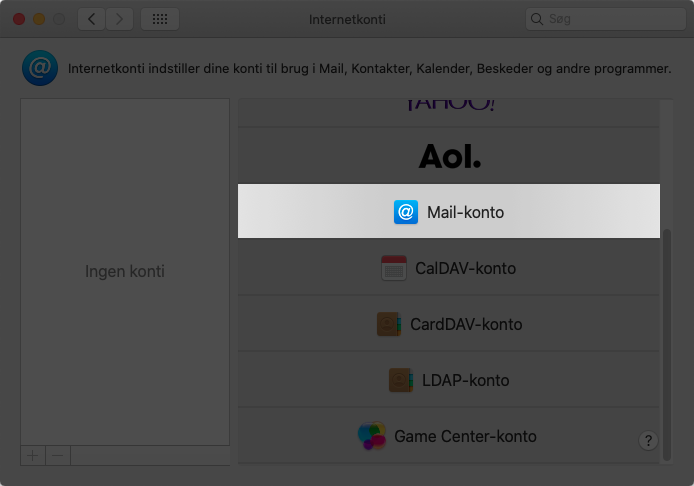
-
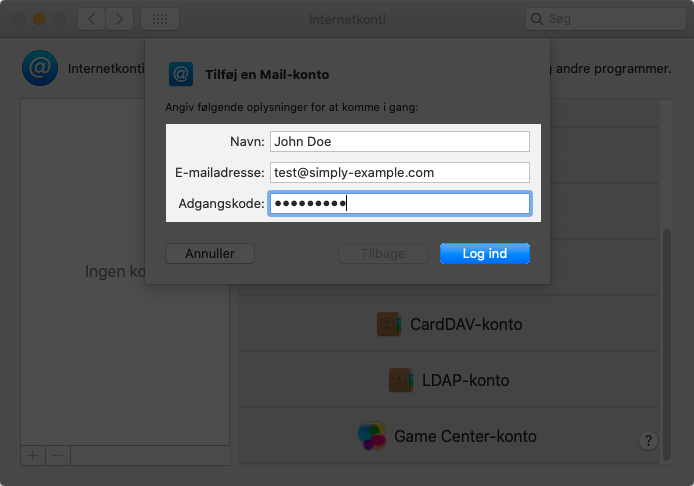
Enter your name (you can choose any name you wish to use for your account), your full e‑mail address, and the password you created for your e‑mail address via the “E‑mail” section in our Control Panel.
-
The program will say: “Cannot verify account name or password.” Here you simply fill in the fields for incoming and outgoing mail and tap Log in.
- Server for incoming mail:
mail.simply.com - Server for outgoing mail:
smtp.simply.com
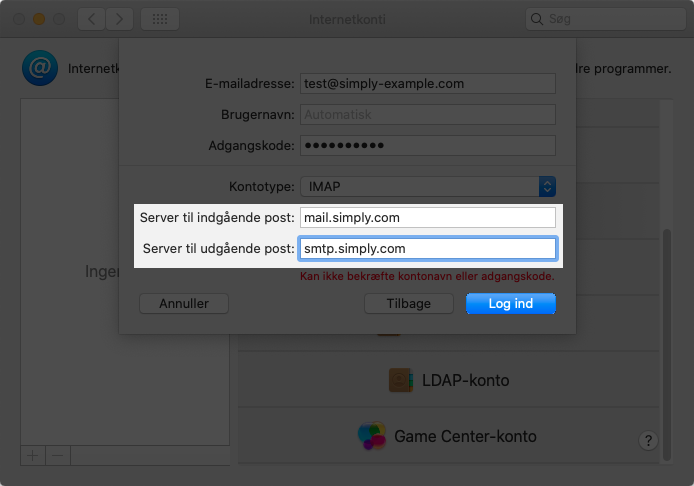
Note: This example is for IMAP, but you can also use POP with the same settings. POP is generally not something we recommend using.
- Server for incoming mail:
-
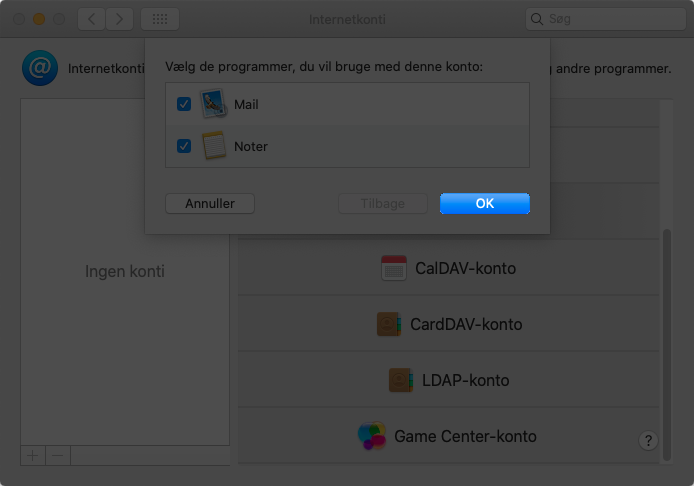
Tap OK here, after which your mail should work!
Article from the support category: Mail
