SEO, Analytics and search engine optimisation in the Website Designer
How to enable Google indexing, Analytics, AdSense and Tag Manager in the Website Designer – indicating which plans support each feature.
In the website designer you have various options to use Google's different tools for SEO.
- Google Indexing.
- Activating Google Analytics.
- Activating Google AdSense.
- Activating Google Tag Manager.
Google Indexing.
-
Go to “Settings” at the top of the website designer.

-
Then you need to find “Website settings”.

-
Below that there will be a button called “Search engine indexing”. You should enable it, as shown in the image.

Activating Google Analytics.
-
The Google Analytics feature is available on a Standard, Pro and Enterprise Suite.
-
You find it in the same place where you find “Search engine indexing”.

-
When you click Connect Account, you need to insert the code you received from Google. It usually looks like: “G-XXXXXXXXXX” – where X is either a number or a letter.
Activating Google AdSense.
-
The Google AdSense feature is available on an Enterprise Suite.
-
You find it in the same place where you find “Search engine indexing”.
-
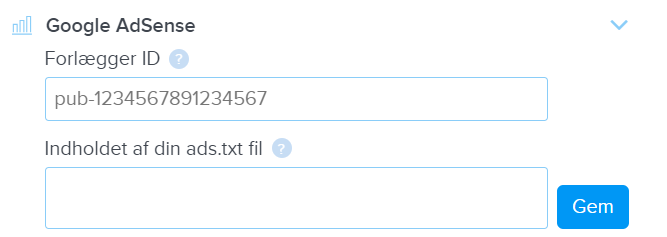
Here you need to enter your Publisher ID and the contents of your ads.txt file.
Activating Google Tag Manager.
-
The Google Tag Manager feature is available on Pro and Enterprise Suite.
-
You find it in the same place where you find “Search engine indexing”.

-
When you click Connect Account, you need to insert the code you received from Google. It usually looks like: “GTM-XXXXXXX” – where X is either a number or a letter.
Article from the support category: Website designer
