Using the website designer
Learn the most used features in Simply.com's website builder: change fonts, insert HTML and files, add video backgrounds, section links and multiple languages.
Here you will find the most used features in the Simply.com website designer. You open the designer under Website > Website designer in the control panel.
- Change font
- Insert HTML code or scripts
- Insert files, e.g. PDF
- Video background
- Link to a specific section
- Multiple languages
- Hide the site while it is being developed
- Mobile and tablet view
Change font
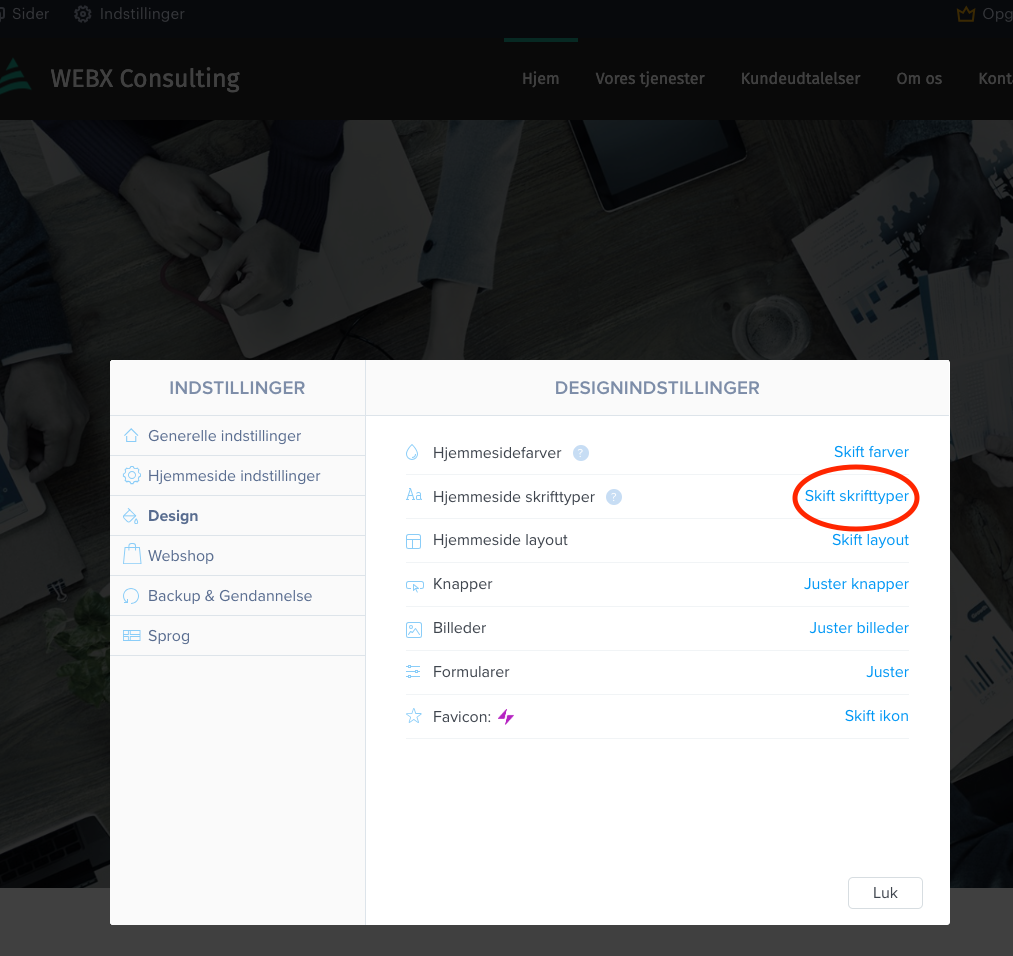
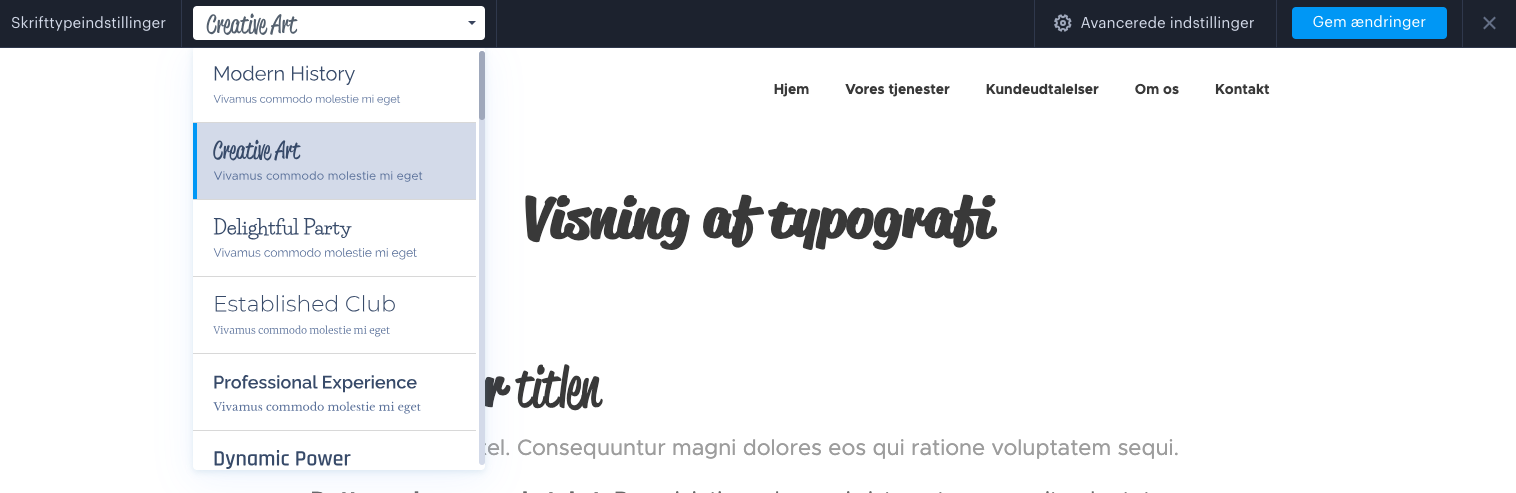
Go to Settings > Design > Website fonts, and select an overall font setting for the entire site.
Insert HTML code or scripts
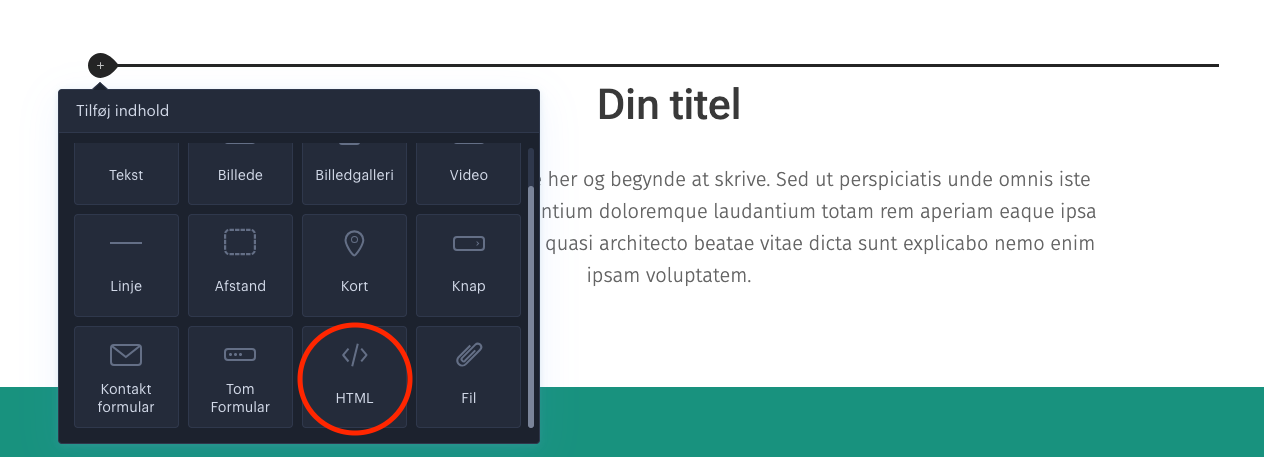
Add a new empty section, click + to the left of the empty field, and select HTML as the field. Then insert your code into the field.
Insert files, e.g. PDF
- Go to the page where the file should be inserted.
- Hover over the field, and click +.
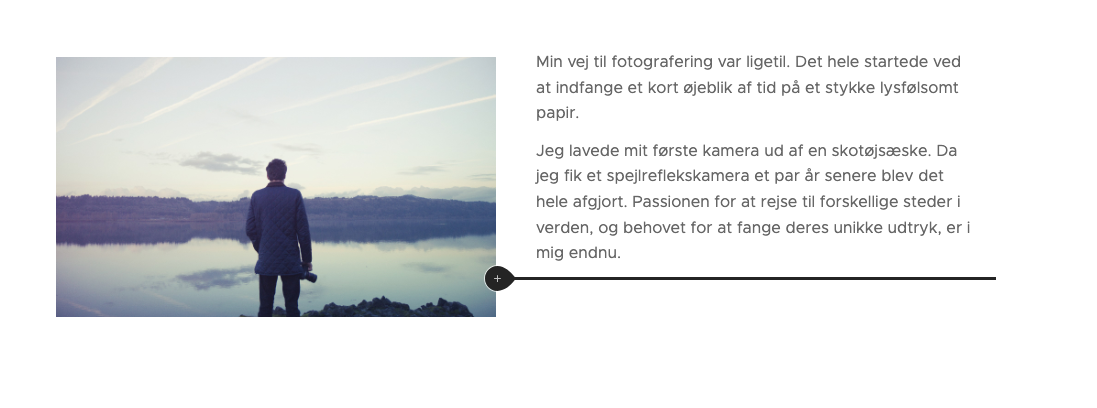
- Select the File element, and upload the file.
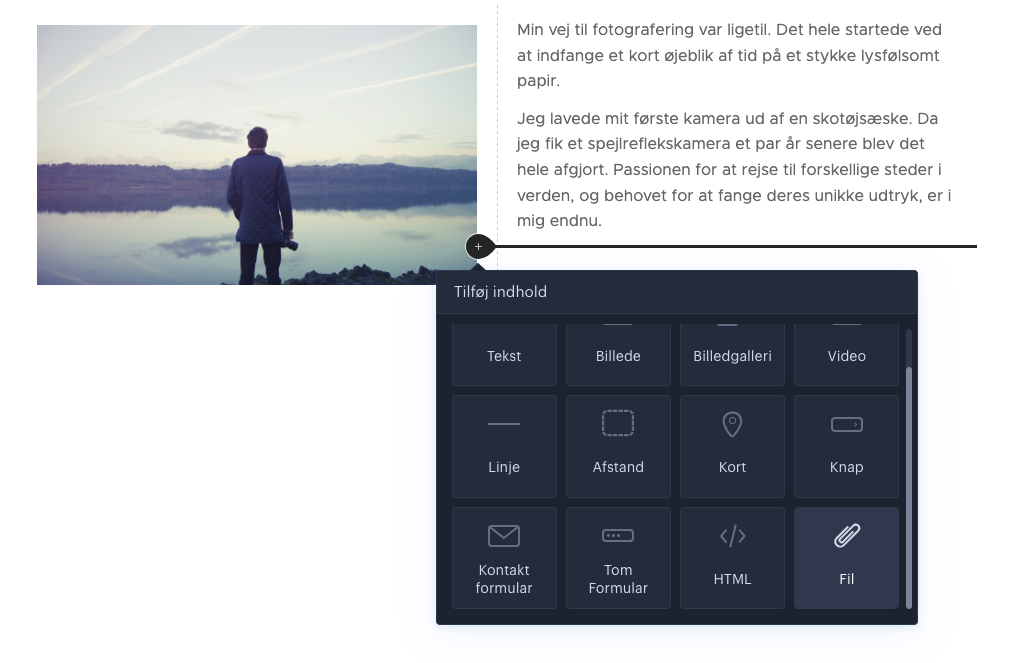
The file can then be downloaded from the page.
Video background
You can use a video from YouTube, Vimeo, Facebook, TikTok or Instagram as the background for a section.
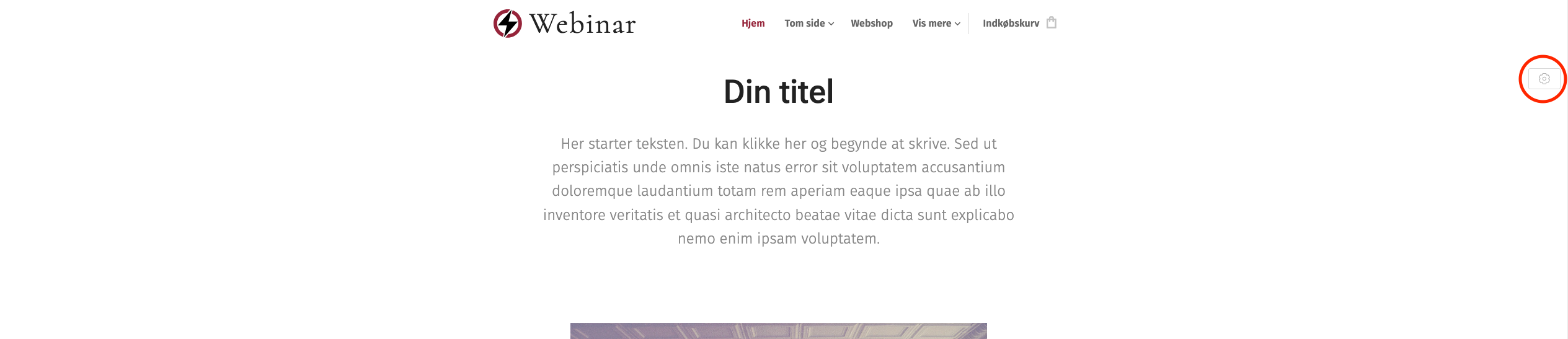
- Hover over the section, and click the cog icon at the top right.
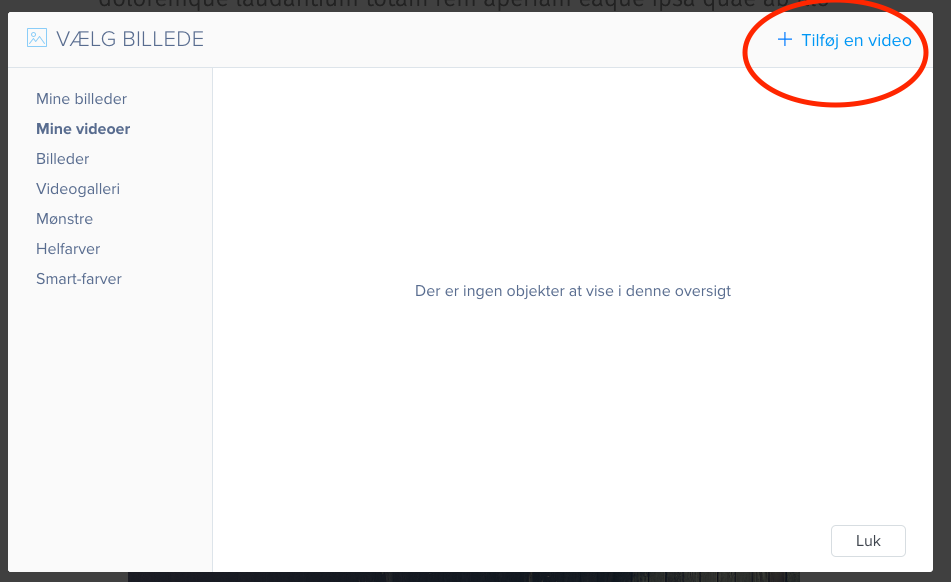
- Select Section background, click + and then Add a video.
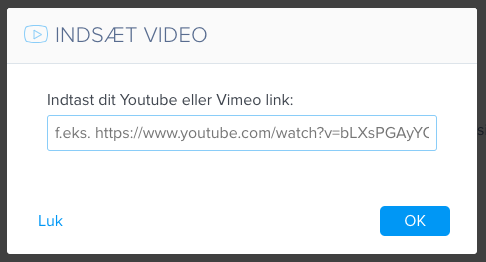
- Insert the link to the video.
Link to a specific section
- Click Pages in the top bar, then Add menu item and Section link.
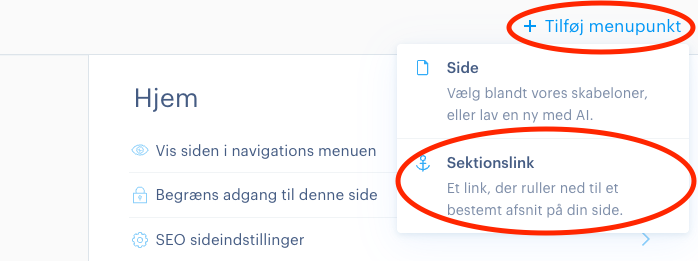
- Select the page and the section the link should lead to.
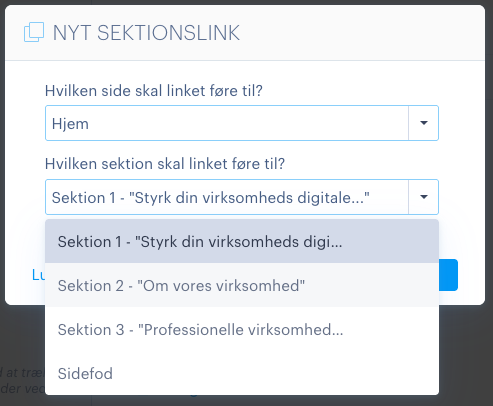
- Give the link a name, and click Create.
The section link is automatically shown in the menu and can be recognised by the anchor icon.
Multiple languages
Multiple languages require Pro Suite (2 languages) or Enterprise Suite (unlimited).
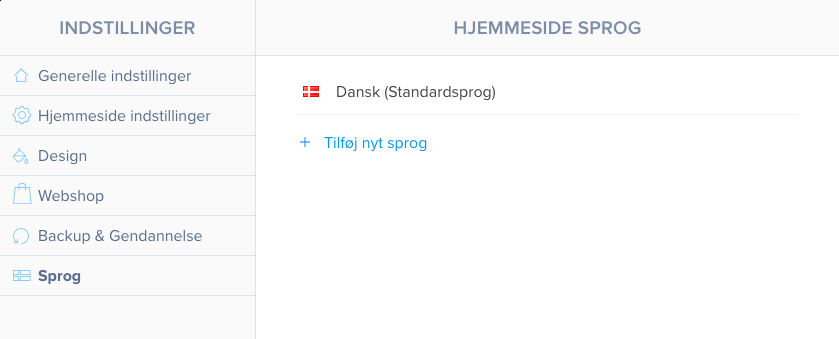
Click Settings at the top left, go to Languages, and click Add new language.
Hide the site while it is being developed
You can hide pages from visitors with member registration. This requires Standard Suite or higher.
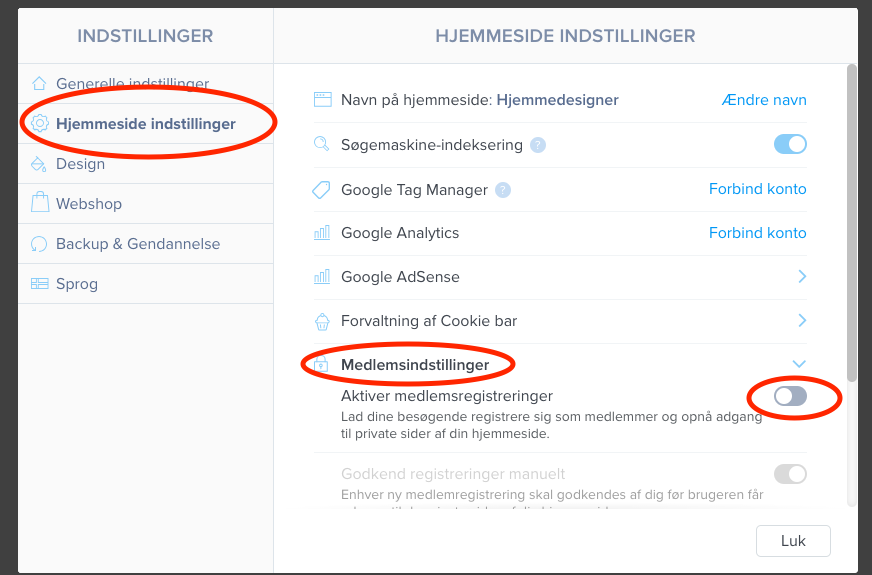
- Click Settings, and select Website settings > Member settings. Enable member registrations.
- Close the window, and click Pages in the top bar.
- Select the page, and enable Restrict access to this page.
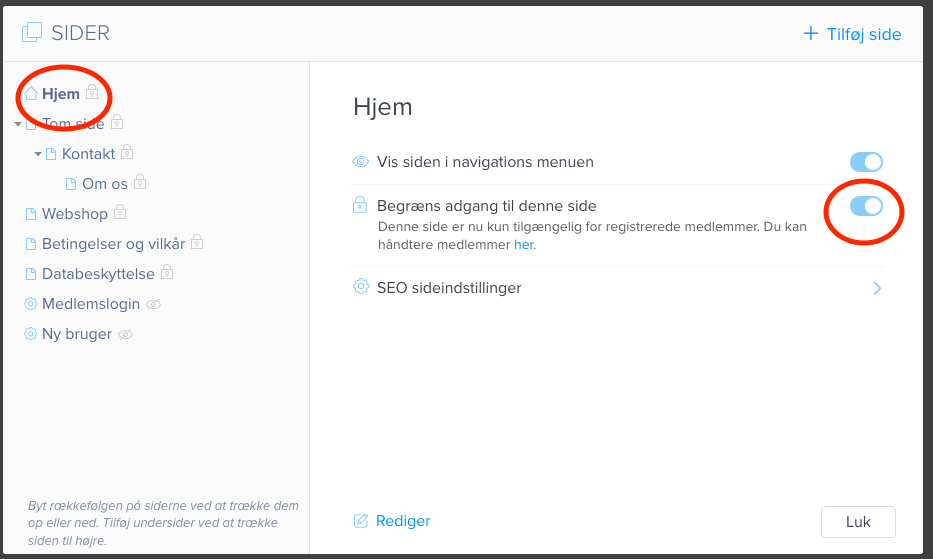
The page can now only be viewed by users with access.
Mobile and tablet view
The view on mobile and tablet cannot be customised. It is determined by the selected template.
Article from the support category: Website designer
