Setting up mail in Outlook 2007
How to set up your Simply.com email in Outlook 2007 with the correct server and port settings
This guide assumes you have already set up your e‑mail account via E‑Mail in our Control Panel.
-
Open Microsoft Outlook 2007
-
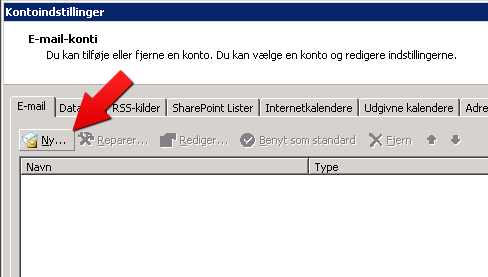
Choose the menu Features then the item Account Settings.
-
Click the button New....
-
Tick the box for “Configure server settings or additional server types manually”.
-
Select Internet e‑mail.
-
Fill in the fields as shown, using the values provided in your welcome e‑mail.
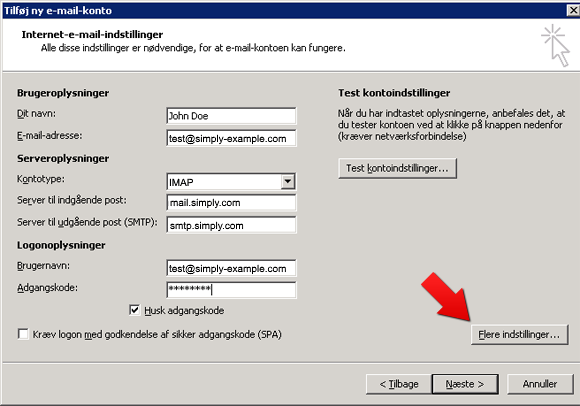
IMPORTANT: The incoming server must be mail.simply.com
NOTE: The account name is your full e‑mail address, not just something like “john” but “john@domain.xxx”!
The password is the one you chose in our mail administration.
-
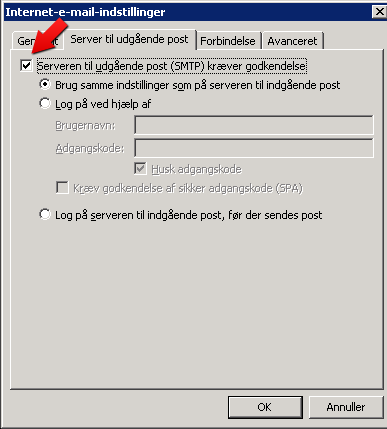
Click the button More Settings and then the tab Outgoing Server.
-
Tick the box for “My outgoing server (SMTP) requires authentication”.
-
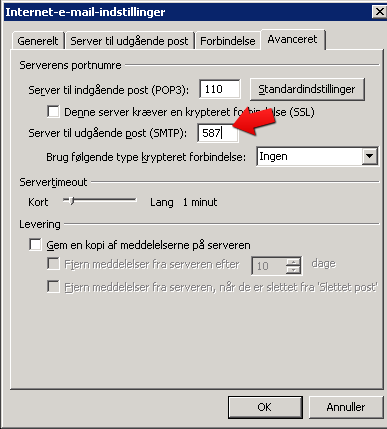
Go to the Advanced tab and set the outgoing server port to 587.
-
Click OK, then the button Test Account Settings to verify everything works correctly.
-
Finally click Next and Finish.
Article from the support category: Mail
