Setting up email in Outlook 2013
How to set up your Simply.com email in Outlook 2013 with POP/IMAP, SMTP port 587 and authentication.
This guide assumes you have already set up your email account in Email in our control panel.
-
Open Microsoft Outlook 2013
-
Select the File menu then the Add Account item.
-
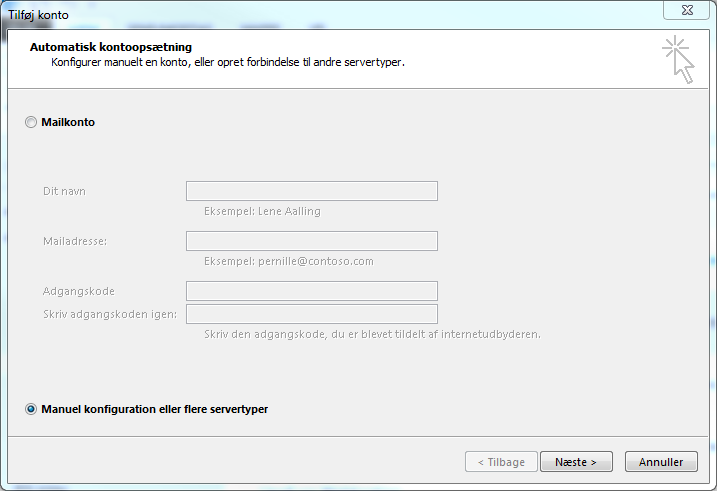
Tick the "Manual configuration or additional server types".
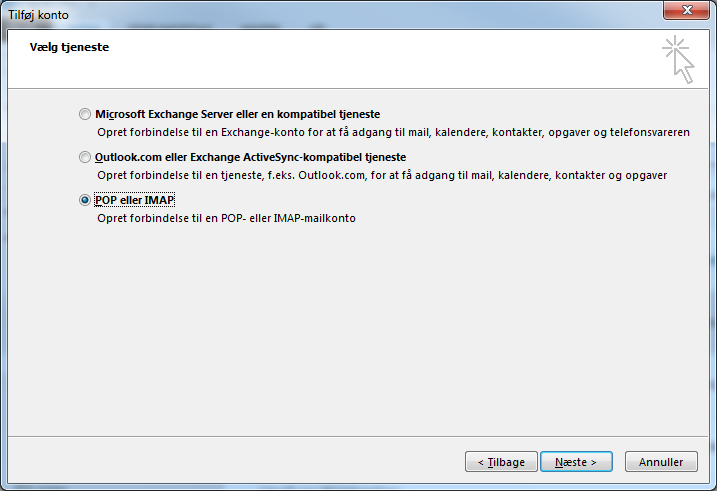
- Choose POP or IMAP.
- Fill in the fields as shown, with values provided in your account creation email.
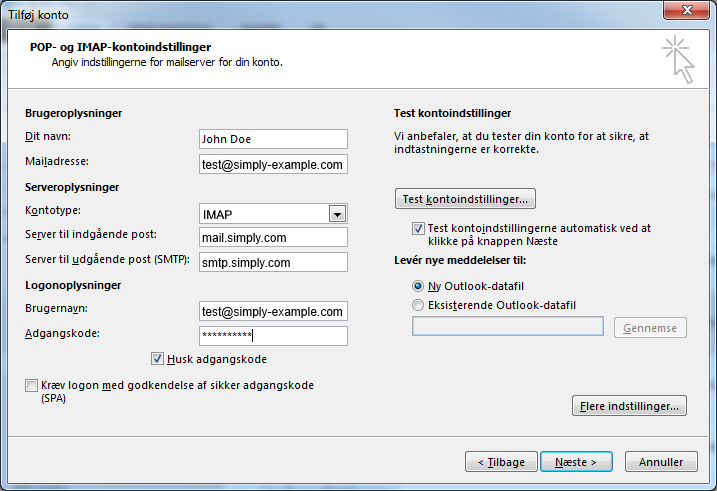
IMPORTANT: The incoming server must be mail.simply.com
NOTE: Username is YOUR FULL email address and not just, for example, "john" but "john@domain.xxx"! The password is the one you chose in the mail administration under your control panel.
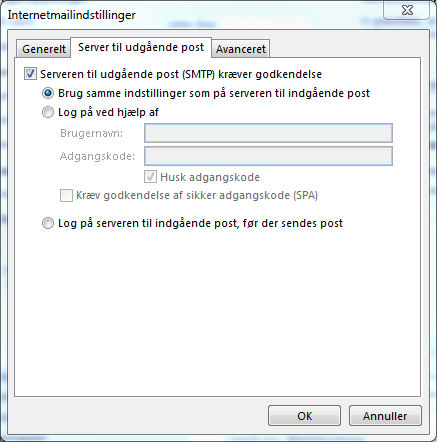
- Select the More Settings button and then the Outgoing Server tab.
-
Tick the "The outgoing server (SMTP) requires authentication" here.
-
Proceed to the Advanced tab and set the outgoing server port to 587.
-
Choose OK and then the Test Account Settings button to verify everything works as it should.
-
Then select Next and Finish.
Article from the support category: Mail
