Setting up mail in Outlook App (iOS)
How to set up your Simply.com email in the Outlook iOS app using IMAP/SMTP, STARTTLS and ports 143/587.
This guide assumes you have already set up your e‑mail account via the “E‑Mail” menu item, which you can find in our Control Panel.
- Enter the e‑mail address and click Add account.
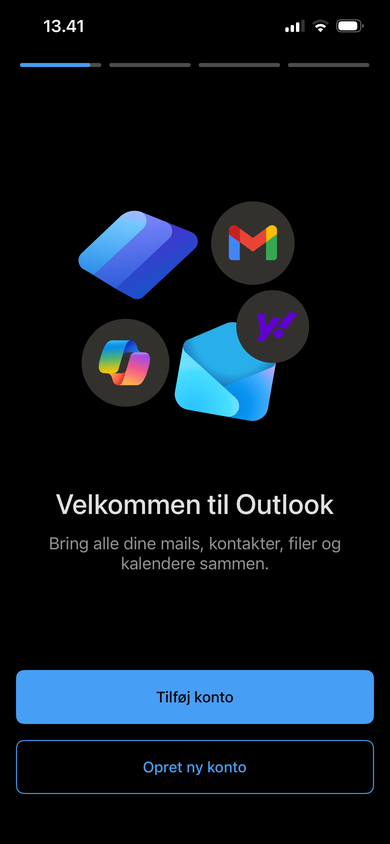
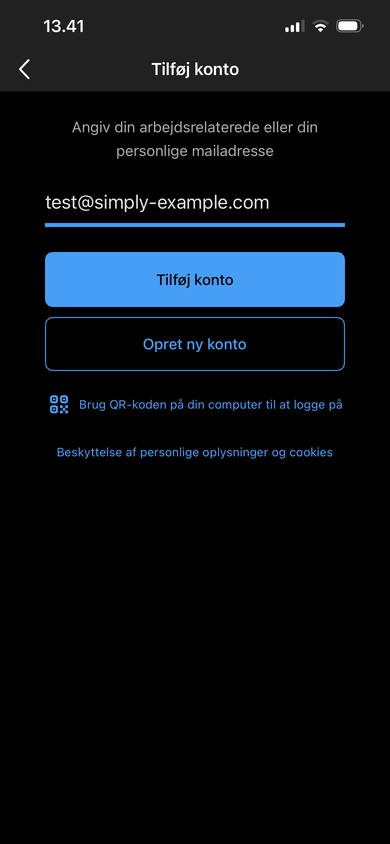
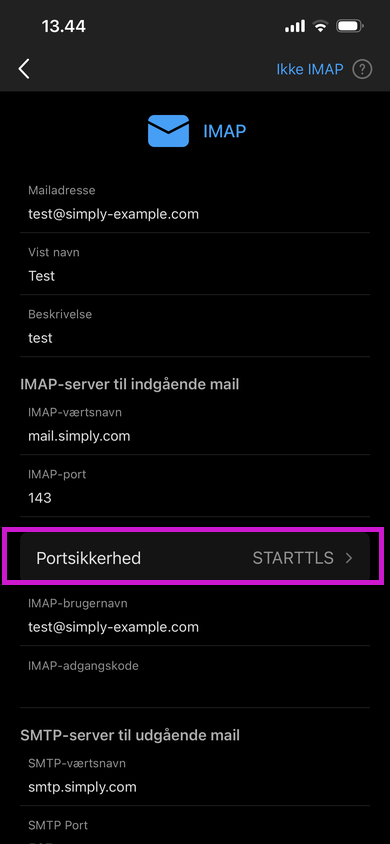
- First, configure the security for the incoming mail server. Click Port security and select STARTTLS.
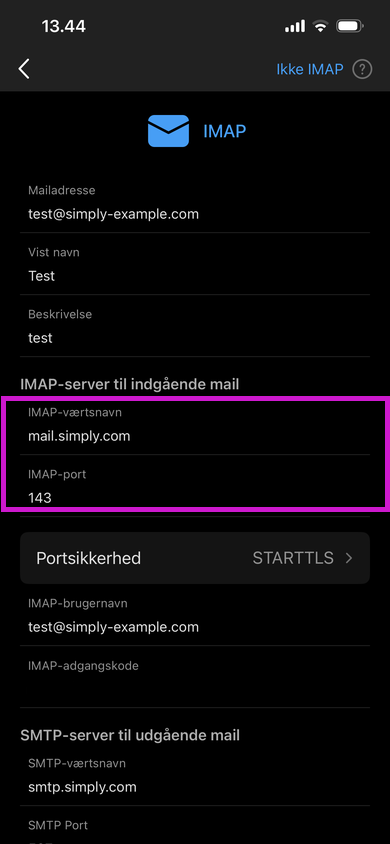
- Next, specify the IMAP Hostname and Port.
IMAP hostname: mail.simply.com
IMAP port: 143
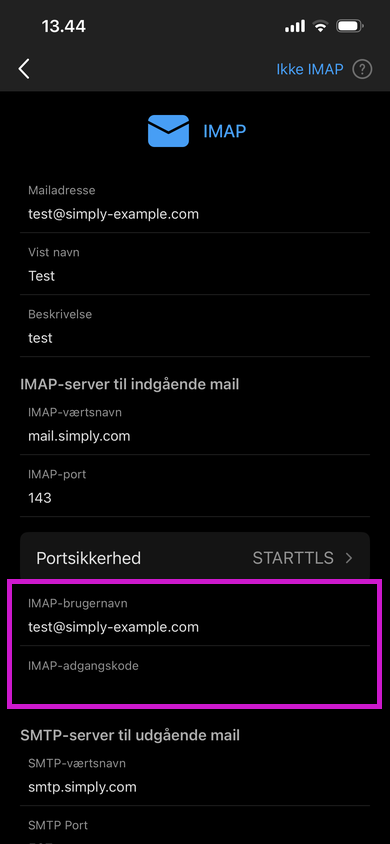
- Then enter the e‑mail address and the associated password.
IMAP username: The e‑mail address you are trying to set up.
IMAP password: The password for the e‑mail you are trying to set up.
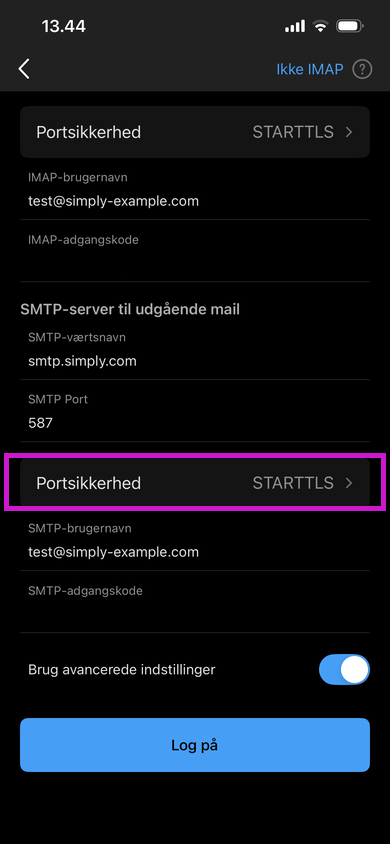
- Now configure the security for the outgoing mail server. Click Port security and select STARTTLS.
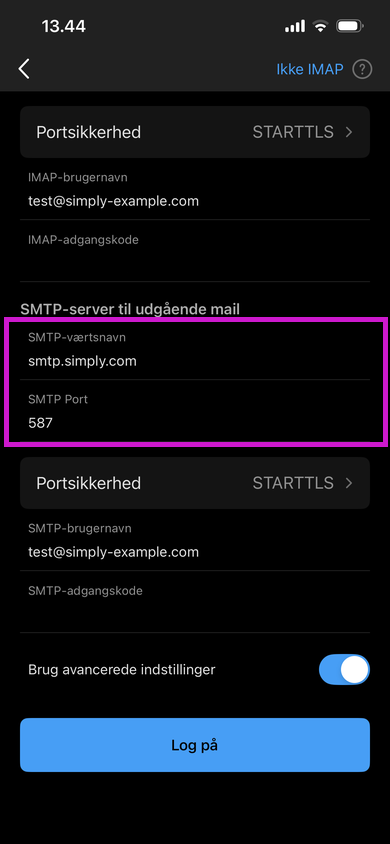
- Next, specify the SMTP Hostname and Port.
SMTP hostname: smtp.simply.com
SMTP port: 587
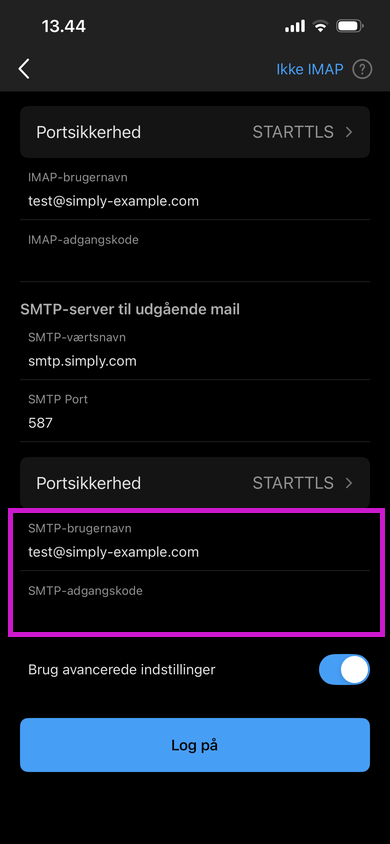
- Then enter the e‑mail address and the associated password.
SMTP username: The e‑mail address you are trying to set up.
SMTP password: The password for the e‑mail you are trying to set up.
When this is done and you have followed the instructions, you can click Log in
Your mail should now be set up and ready to use!
Note: If you do not get the option to enter the above details and it looks different for you, it may be because you need to enable Use advanced settings.
Article from the support category: Mail
