Setting up email in Gmail App (Android)
How to configure your Simply.com email in the Gmail app on Android with IMAP settings.
This guide assumes you have already set up your e‑mail account via the “E‑Mail” menu item, which you can find in our Control Panel.
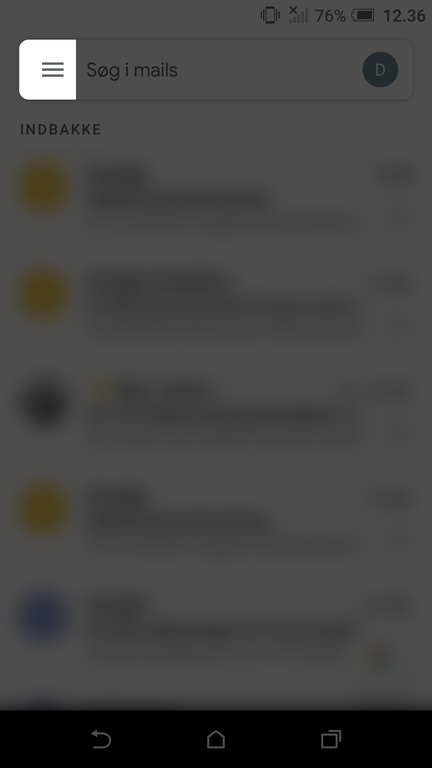
- Open the menu in Gmail.
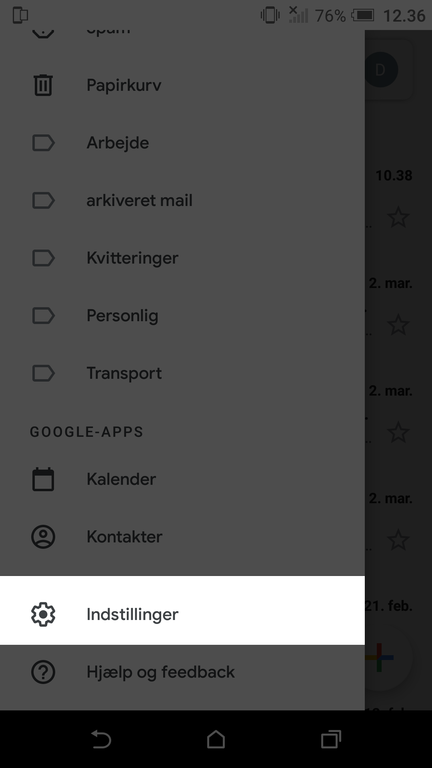
- Select Settings.
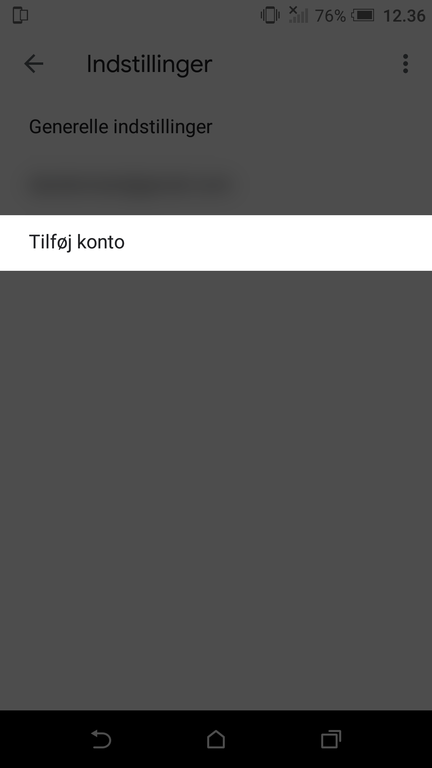
- Tap Add account.
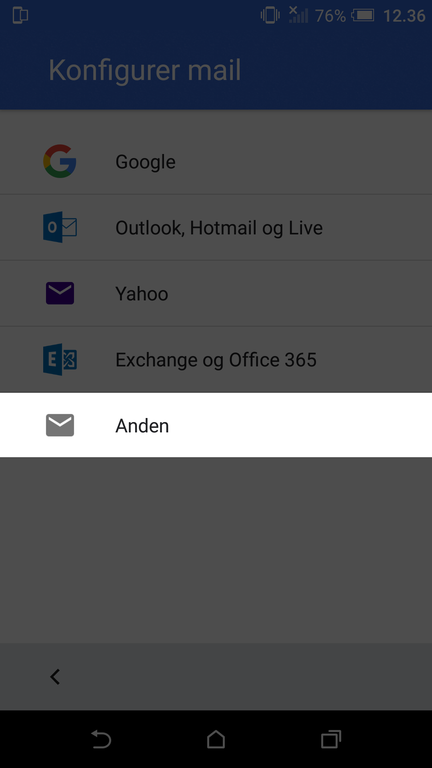
- Choose Other.
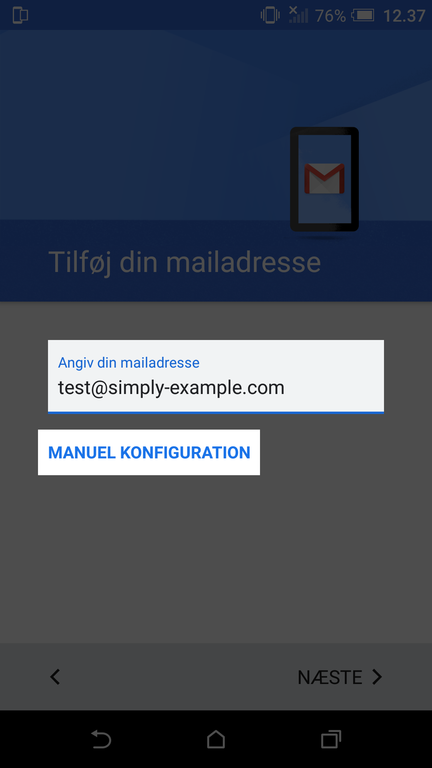
- Enter the e‑mail address you want to set up in the app, and tap Manual setup.
- Select Personal (IMAP) and tap Next.
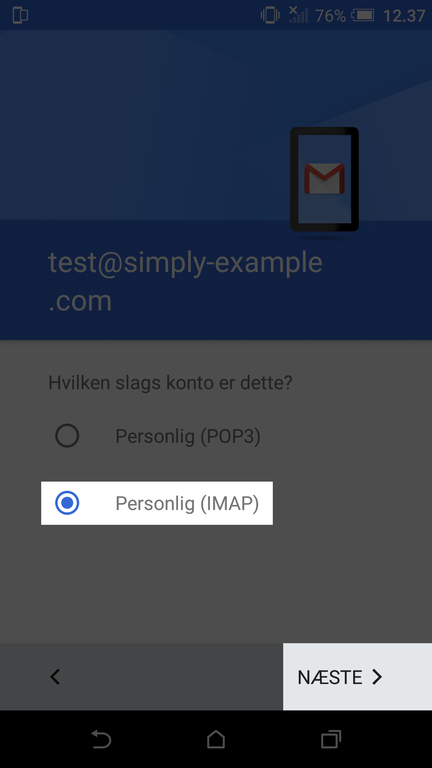
Note: You can also choose to use POP3, but it is not recommended.
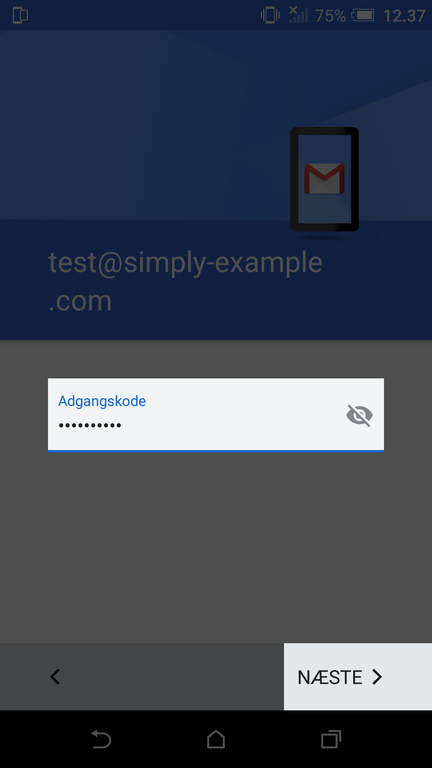
- Enter the password for the e‑mail address you are setting up, and tap Next.
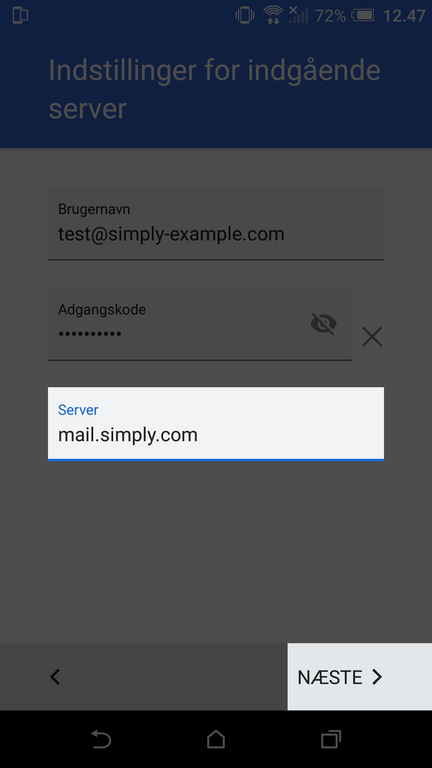
- Change the text in the Server field to
mail.simply.comand tap Next.
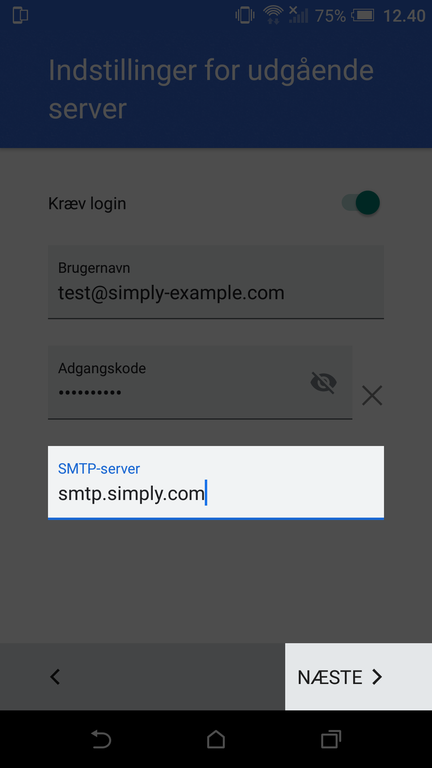
- Change the text in the SMTP server field to
smtp.simply.comand tap Next.
Article from the support category: Mail
