Setting up mail in Thunderbird (macOS)
How to set up your Simply.com email in Thunderbird on macOS – with automatic or manual configuration in just a few clicks.
This guide assumes you have already set up your e‑mail account via the “E‑Mail” menu item, which you can find in our Control Panel.
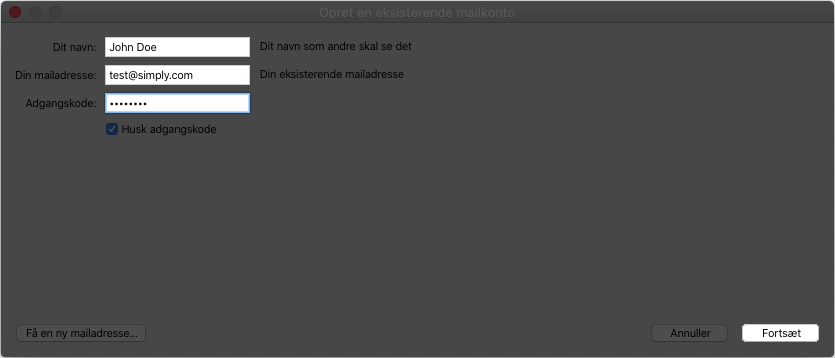
- In the window where a new mail account is set up, you must enter the e‑mail address you want to set up, and the code for it. Click “Continue”.
- Click “Create account”, after which your e‑mail should work.
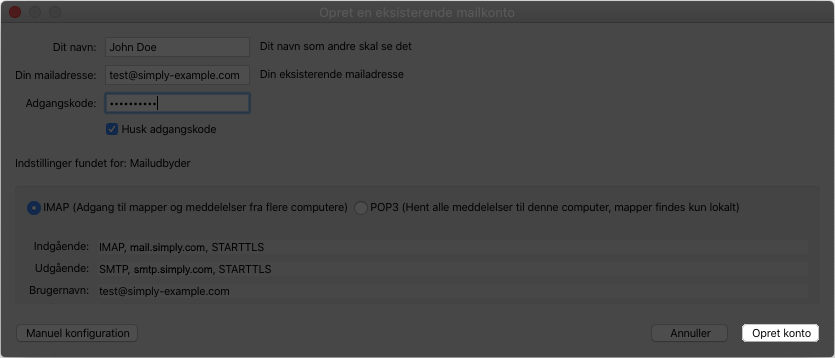
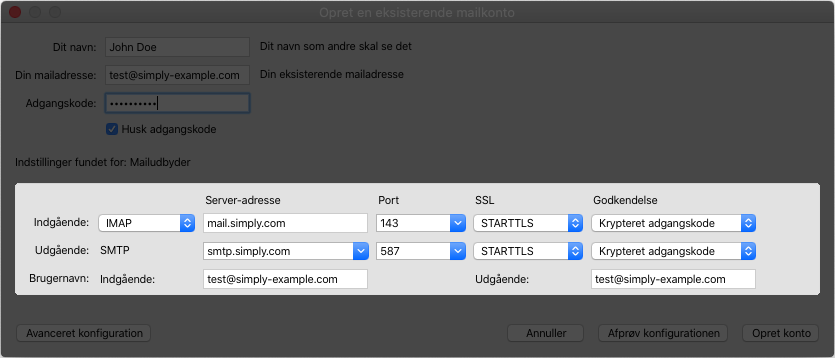
- If the creation fails, you can try clicking “Manual configuration” and set the settings manually according to the image below.
Article from the support category: Mail
