Setting up mail in Thunderbird
How to set up your Simply.com email in Mozilla Thunderbird with a few clicks
Here is our guide on how to set up a connection to your mail account in Mozilla Thunderbird.
The guide assumes that you have already created the mail account you want to connect to. If you haven’t, you can do so in the control panel at https://www.simply.com/controlpanel/
Select the domain you wish to create a mail account on, and click the E‑mail menu item. Here you can create a mail account.
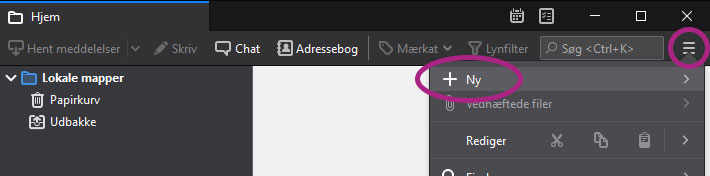
- Click the menu in the top‑right corner and select New > New mail account....
- Choose Skip this and use my existing email address.

- Enter account details.
Your name: Dit navn
Your email address: Din e‑mail adresse (f.eks. mail@ditdomæne.dk)
Password: Adgangskoden til din mailkonto
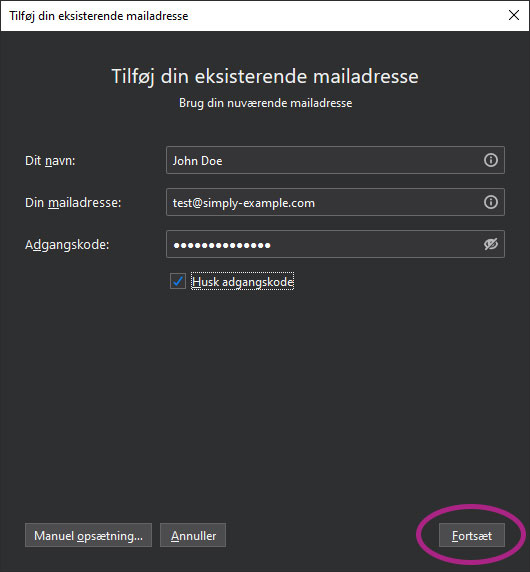
In the example above, the email address test@simply-example.com is shown. You should, of course, enter your own email address instead.
Click Continue.
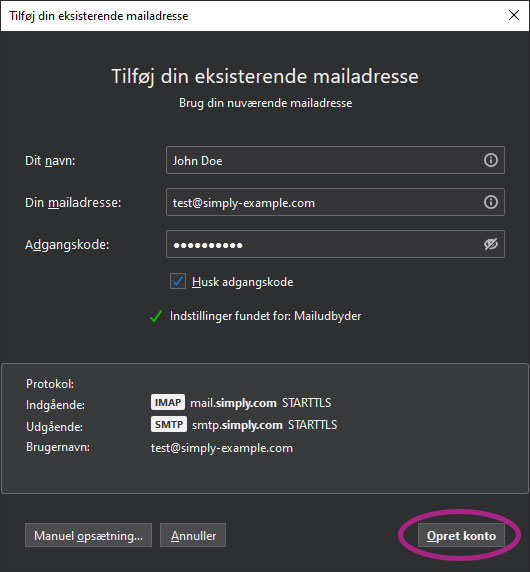
- Click Create account.
Article from the support category: Mail
