Setting up email in Outlook 2011 (macOS)
How to set up your Simply.com mail in Outlook 2011 on macOS
This guide assumes you have already set up your e‑mail account via E‑Mail in our control panel.
-
Choose to add a new IMAP or POP account.
-
Fill in the fields with the details that match the account you want to check mail for.
For example, replace “test@ue‑example.com” with something like “jens@jensjensen.dk”, and replace your incoming server with the server listed in your registration e‑mail.
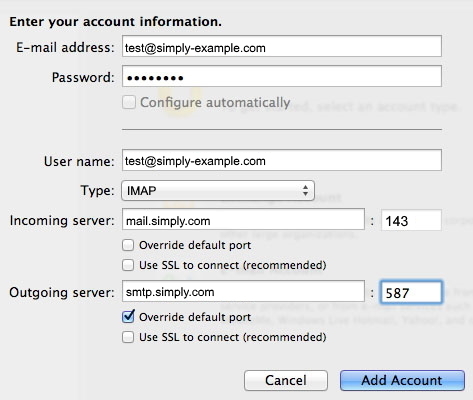
IMPORTANT: The incoming server must be mail.simply.com
-
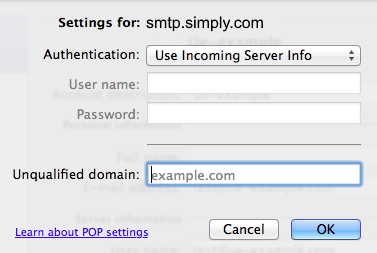
Once the account is created, edit it and change the settings for the outgoing server. Do this by clicking the “More options” button, where you will set up the login as shown.
Article from the support category: Mail
