Setting up mail in Outlook for Microsoft 365 (MacOS)
How to set up your Microsoft 365 mail in Outlook on macOS via IMAP using our servers.
The following guide describes setting up Mail in Outlook for Microsoft 365 on Mac.
-
Add a new account to Outlook via the settings by clicking on Accounts and then clicking the plus sign at the bottom left, where you can select New account….
-
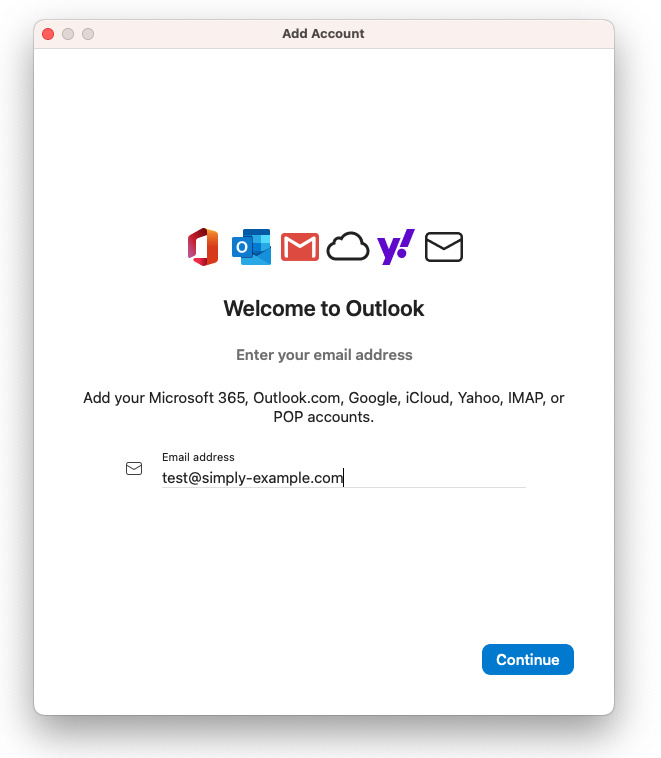
Enter the email address you want to set up in the application.
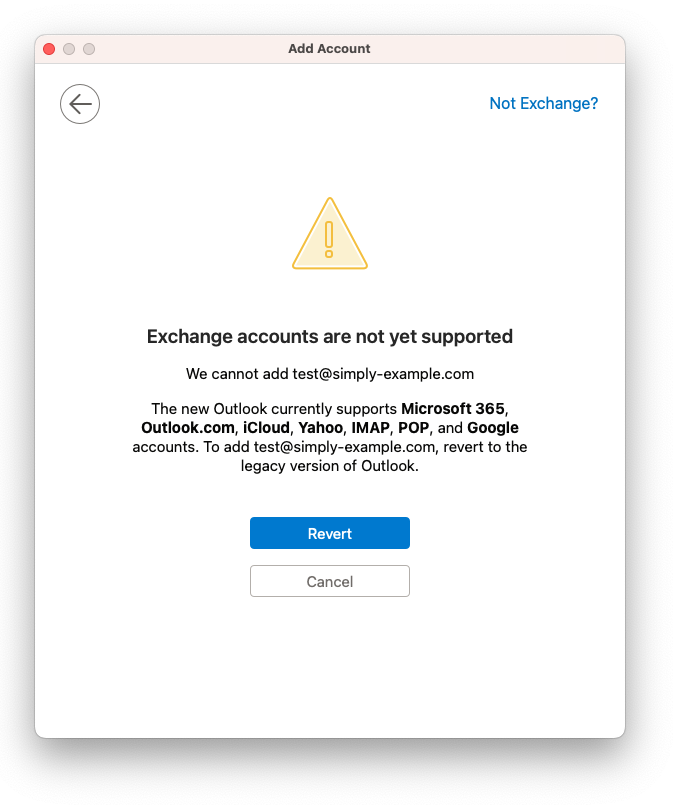
- When you see this warning, select Not Exchange? in the top‑right corner.
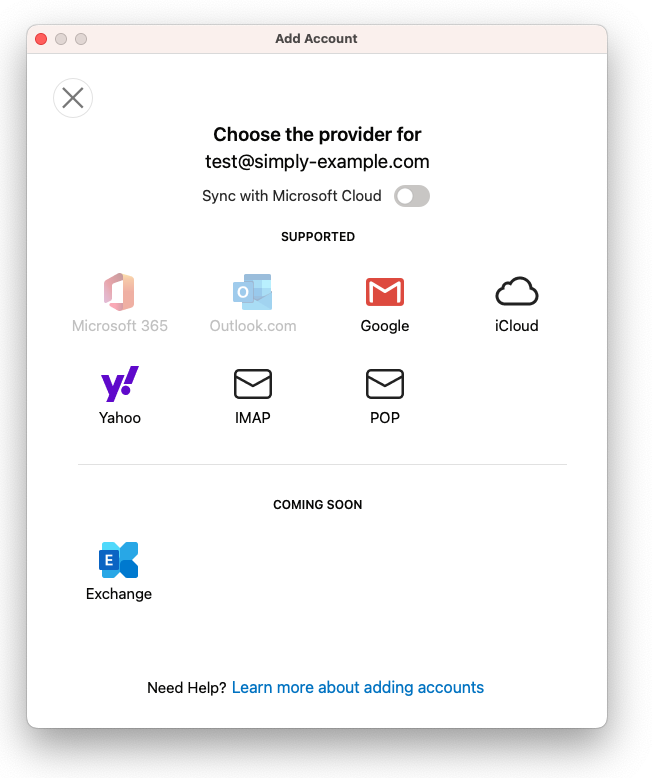
- IMPORTANT: For your e‑mails to sync with our server, make sure that Sync with Microsoft Cloud is unchecked. Then select IMAP.
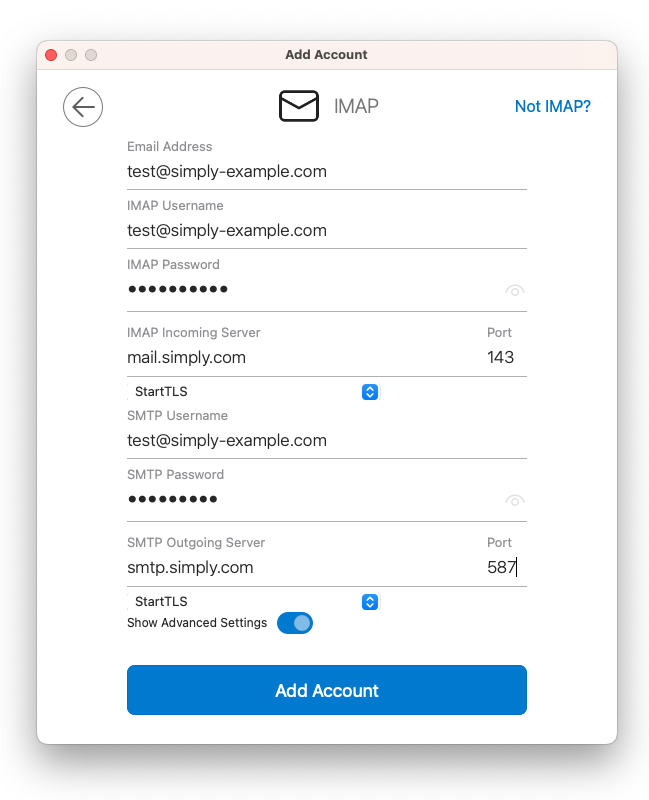
- Enter your mail address and password (the username must be the full mail address), specify the incoming server as
mail.simply.comand the outgoing server assmtp.simply.com. Also note that you need to choose StartTLS as encryption and use port 143 for incoming and port 587 for outgoing.
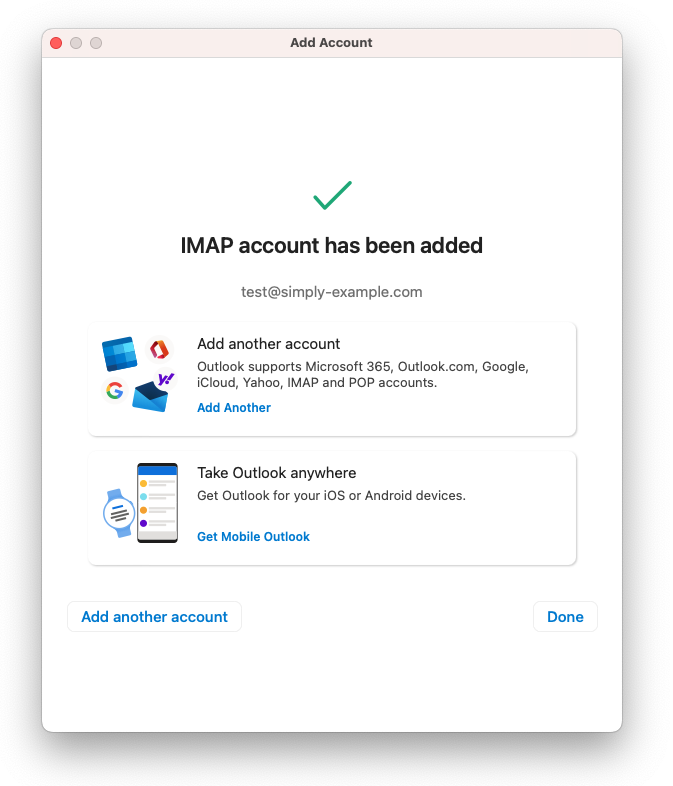
- Your e‑mail should now work!
Article from the support category: Mail
