Setting up email on iPhone
How to set up your Simply.com mail on iPhone by following a few simple steps in Settings
Tip: Set up mail on your iPhone easily with our automatic setup guide.
This guide assumes you have already set up your e‑mail account via E‑Mail in our control panel.
-
Open Settings on your iPhone and search for Mail:
-
Go to Mail and select “Accounts”:
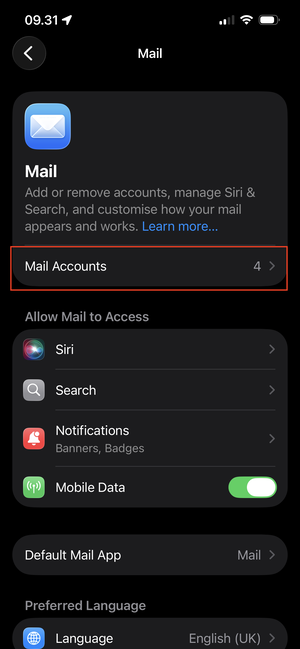
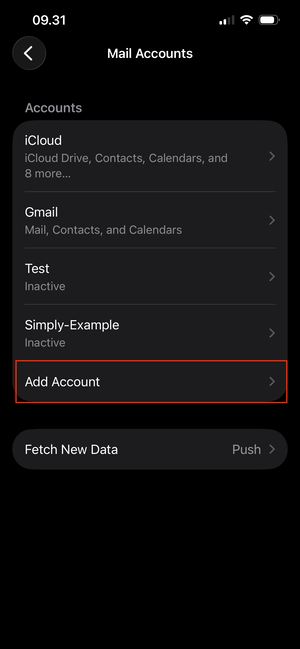
- Choose “Add Account”:
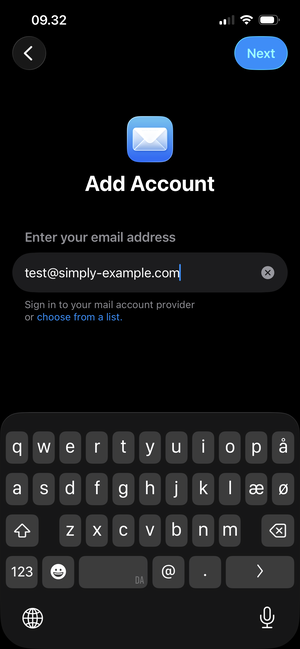
- Enter the mail address you want to set up and tap “Next”:
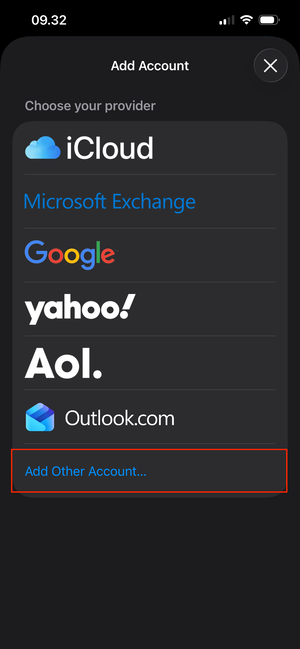
- Select “Add Another Account”:
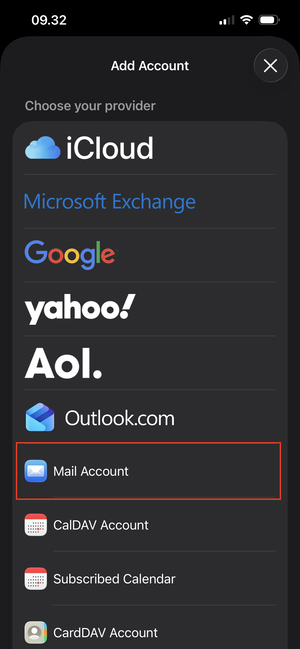
- Choose “Mail Account” here:
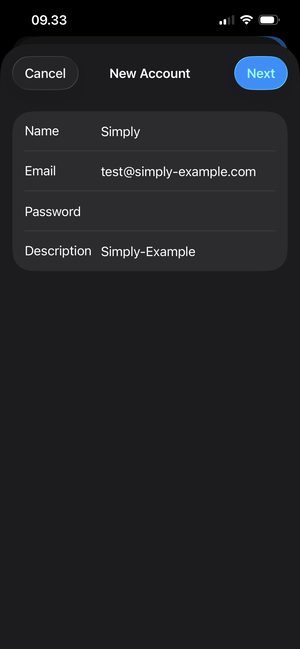
- Enter your e‑mail address and the corresponding password. You may fill in the name and description as you wish.
Note: The password is the one you chose for your mail address via “E‑Mail” in our control panel.
Tap Next when you are finished.
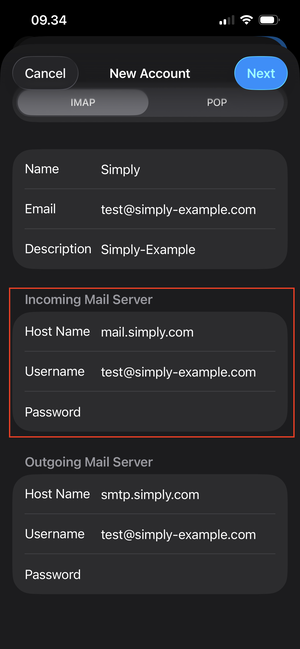
- Scroll down to Incoming Mail Server and enter the details.
Host name: mail.simply.com
Enter the e‑mail address as the username and the same password again.
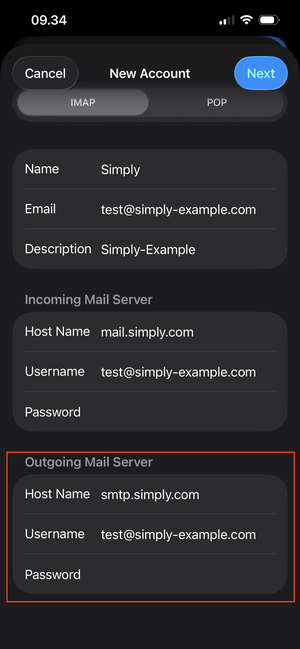
- Scroll a little further down to Outgoing Mail Server.
Host name: smtp.simply.com
Enter the same username and password as above for the incoming mail server.
IMPORTANT: Even though the username and password fields are shown as “Optional”, they must be filled in.
Tap Next when you are finished.
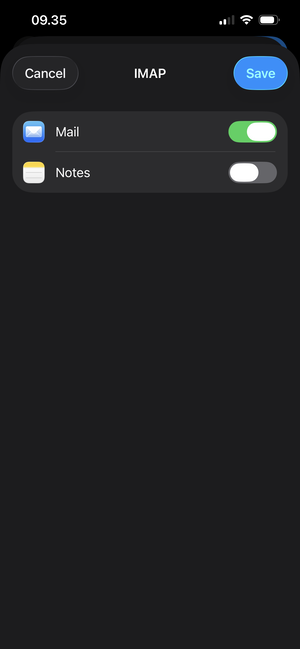
- Finish by tapping Save
Article from the support category: Mail
