Setting up mail in Windows 10 Mail
How to set up your Simply.com email in Windows 10 Mail using mail.simply.com and smtp.simply.com.
This guide assumes you have already set up your e‑mail account via the “E‑Mail” menu item, which you can find in our Control Panel.
-
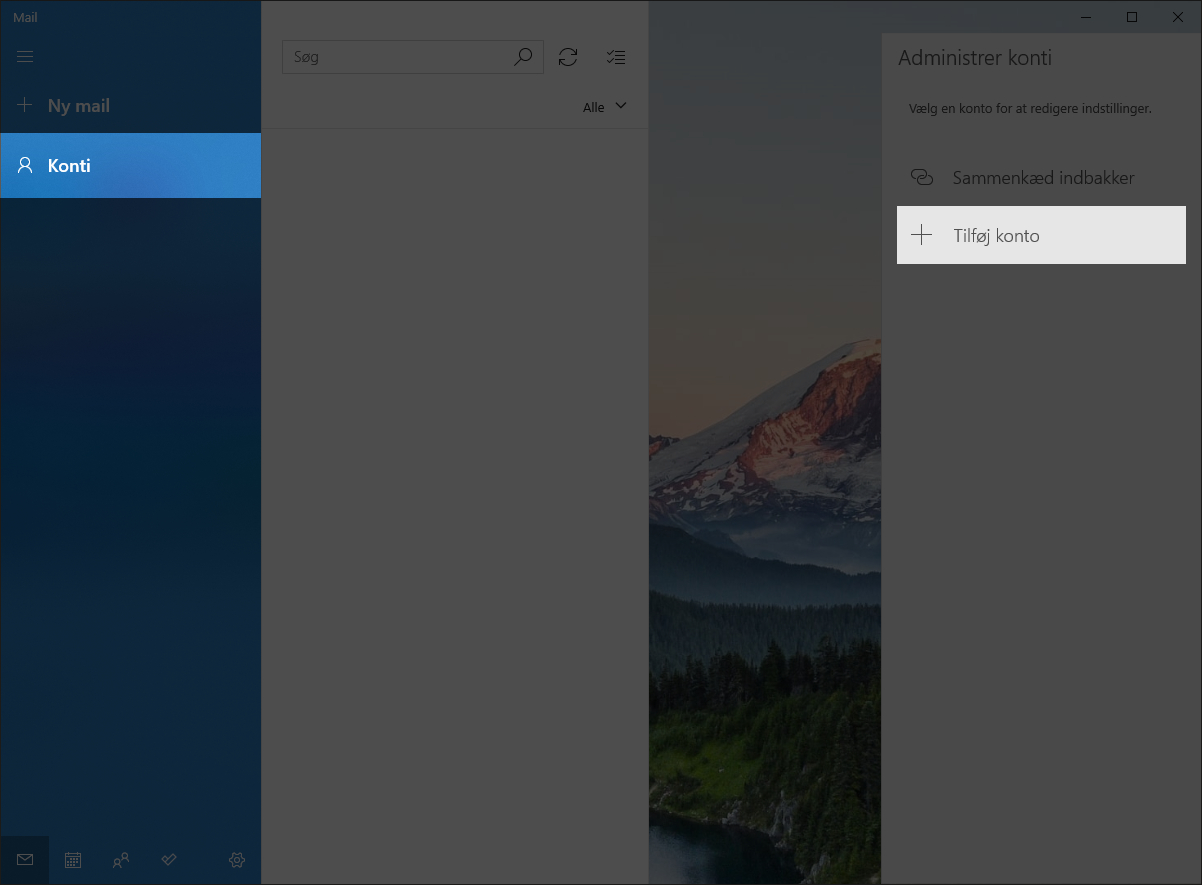
Open Mail in Windows 10, click Accounts and choose Add account.
-
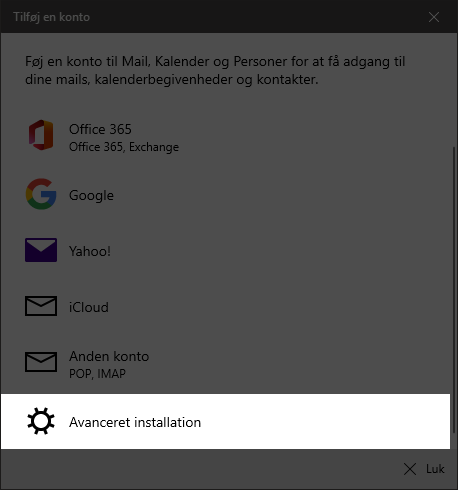
Select Advanced setup
-
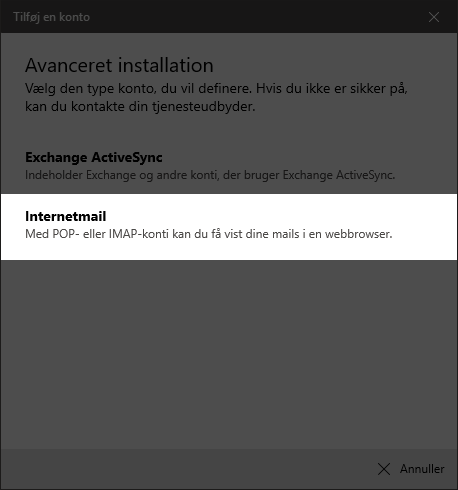
Choose Internet mail
-
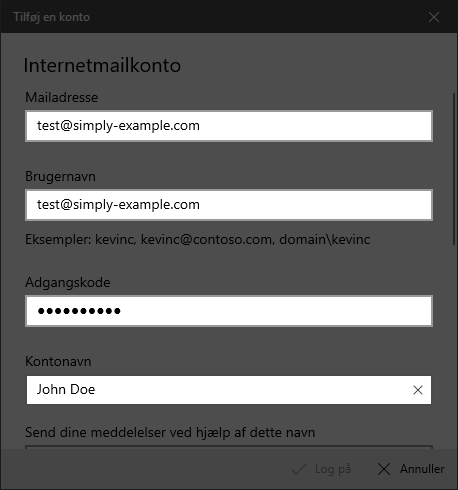
You can find the correct information to enter in the welcome email that was sent to you when you ordered your webhosting.
The username is your FULL e‑mail address, not just, for example, test but test@domain.xxx! The password is the one you chose in “E‑Mail” in our control panel.
-
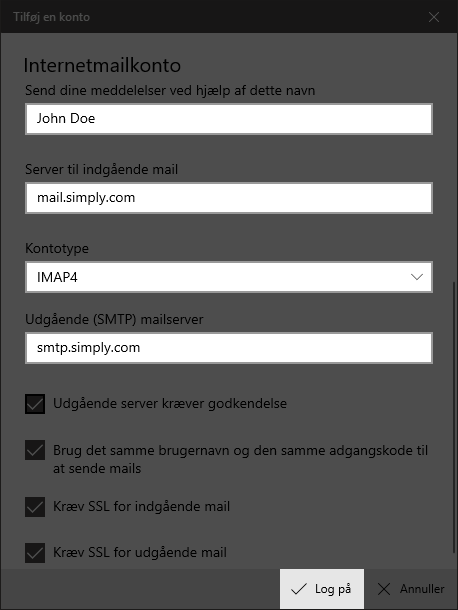
The incoming server should be mail.simply.com.
The outgoing server should be smtp.simply.com.
-
Click Log on and your account is now configured and ready to use.
Article from the support category: Mail
