Setting up email in Outlook 2020
How to set up your Simply.com email in Outlook 2020 via IMAP with the correct servers and ports.
This guide assumes you have already set up your e‑mail account via E‑Mail in our control panel.
See how to connect to your mail account in Outlook 2020:
-
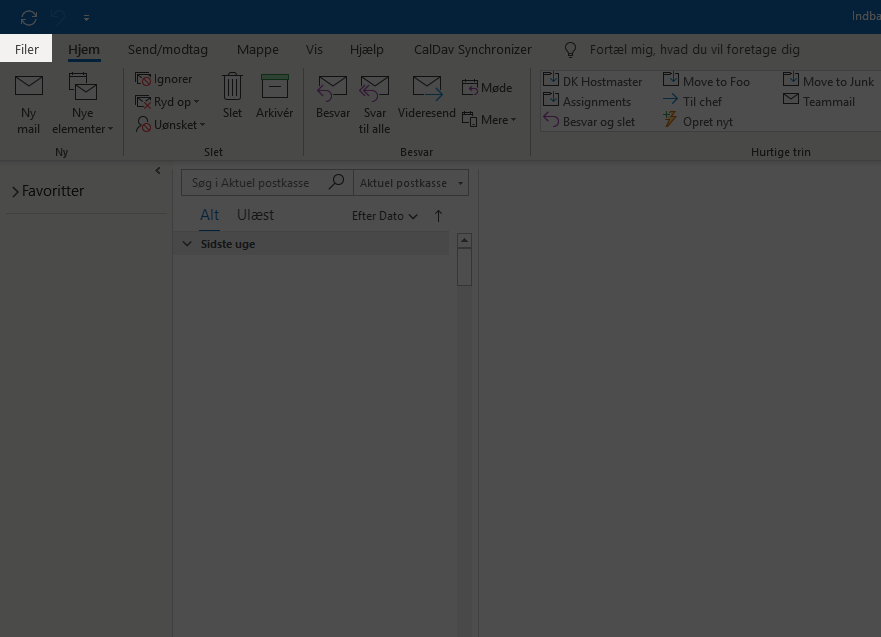
Click File.
-
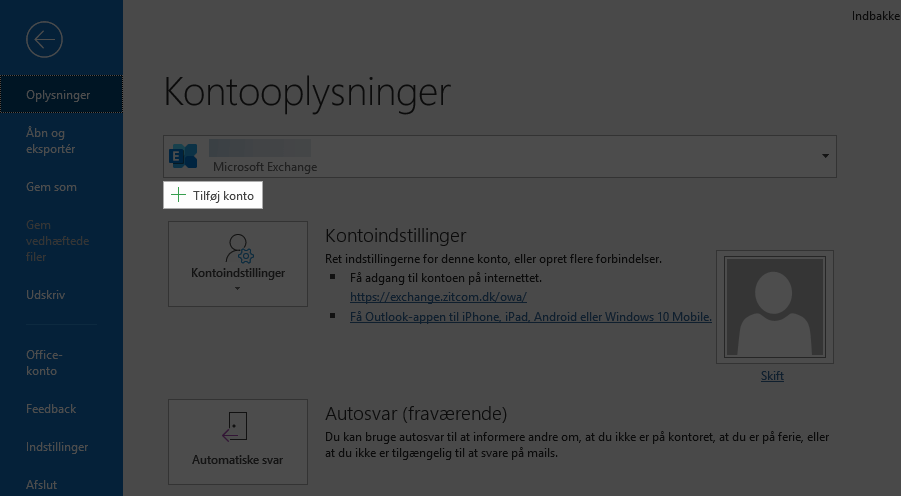
Click Add account.
-
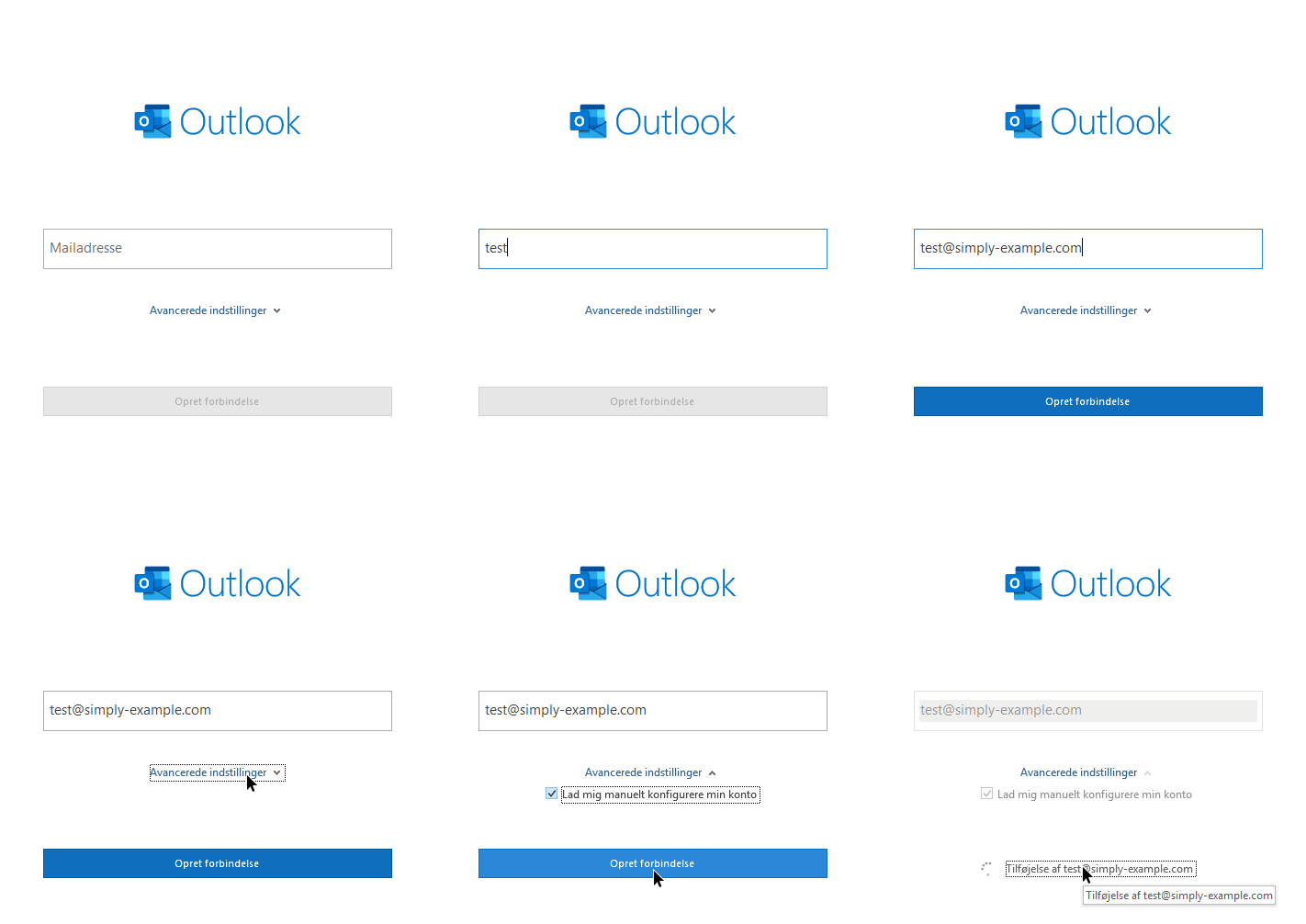
Enter your e‑mail address, click Advanced settings, tick Let me set up my account manually and click Connect.
-
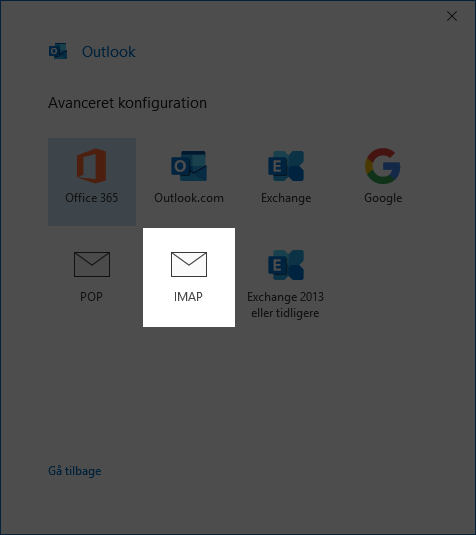
Choose IMAP
-
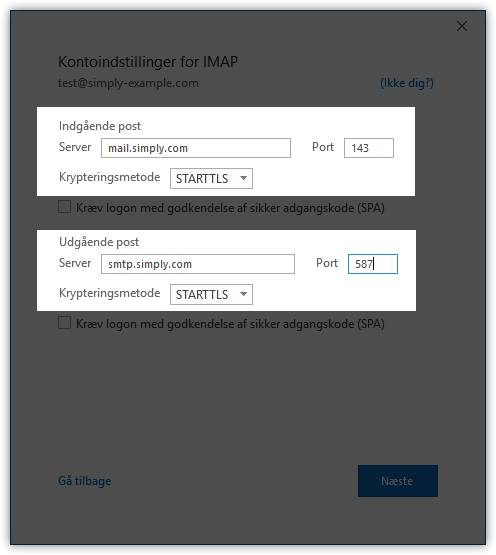
Enter the following settings and click Next:
Incoming mail
- Server:
mail.simply.com - Port: 143
- Encryption method: STARTTLS
Outgoing mail
- Server:
smtp.simply.com - Port: 587
- Encryption method: STARTTLS
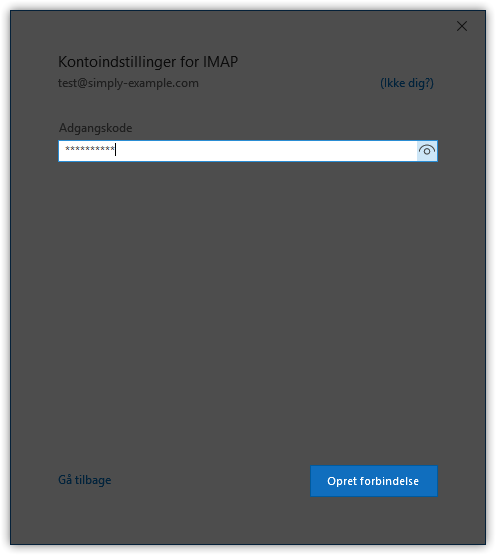
- Enter the e‑mail account password and click Connect.
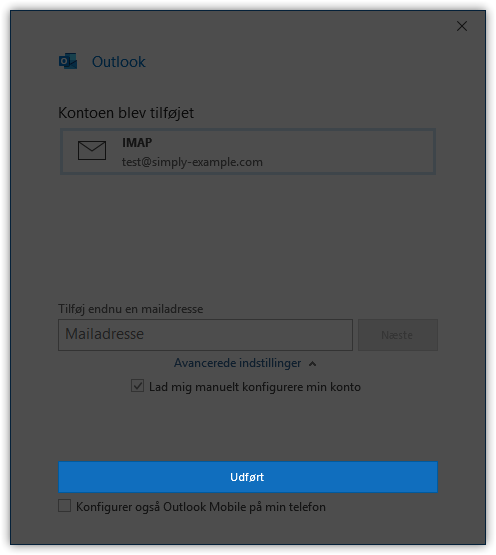
- Click Done
Article from the support category: Mail
