Webmail
Log in to https://www.simply.com/webmail/ to read and write emails, add text/HTML signatures, attach files up to 100 MB and use only one account at a time.
Our Webmail is available at https://www.simply.com/webmail/ – a URL you’ll want to bookmark in your browser.
In Webmail you must log in with your e‑mail address and the password you chose when you created your e‑mail account in our Mail Administration.
Once you are logged in you can read and write mails from your mail account.
You can also send attached files in Webmail. However, be aware that the limit for attachment size is max. 100 MB. If you wish to send larger files you should send them via a mail client on your computer, or via a file‑sharing service.
It is only possible to be logged into one mail account at a time in Webmail. If you want to read/write mails from another mail account you must log out of the first account and then log in to the other.
Mail signature in Webmail
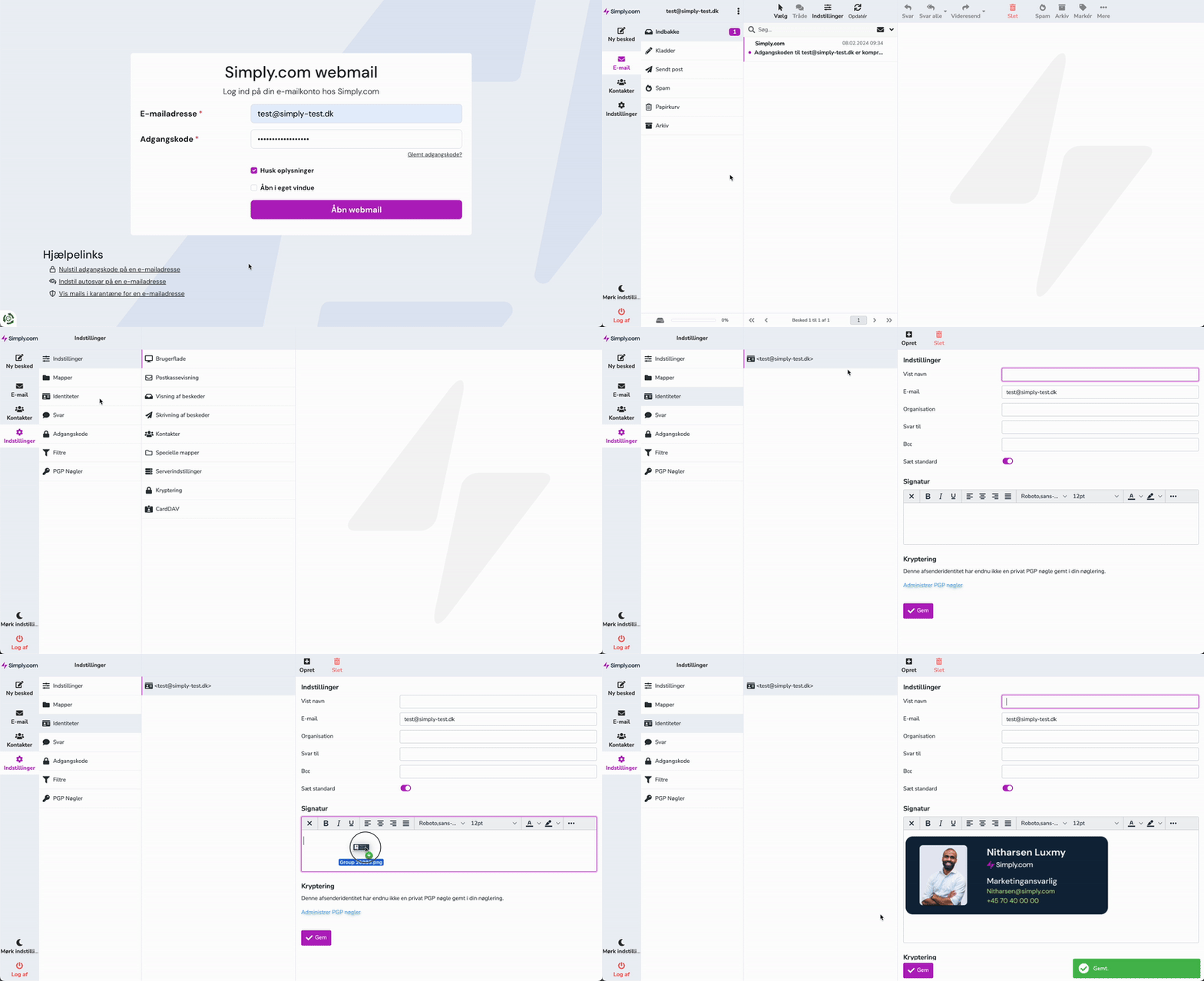
How to add a signature to your e‑mails in Webmail.
-
Open Webmail
-
Click Settings -> Identities -> Your e‑mail address
Here you can set up your signature in plain text.
If you want to set up an HTML signature, you can simply do so by enabling HTML:
When HTML is enabled you get more tools to set up your signature with.
Remember to press Save at the bottom of the page when you are finished.
Note! If you have set up an HTML signature, there is a function in Webmail you need to enable for the signature to always appear when you compose a new mail.
Click Settings -> Composing messages
In the setting Compose HTML message you must select always.
Remember to press Save at the bottom of the page when you are finished.
Article from the support category: Mail
