Setting up mail in Thunderbird on Android
Guide to configuring your Simply.com email in the Thunderbird app on Android with IMAP/SMTP settings.
So how to add your email account in Thunderbird on Android.
Note: Any reference to test@simply-example.com should of course be replaced with your own email address.
- Open the Thunderbird app.
If this is your first time using the app, you will be greeted with this screen:
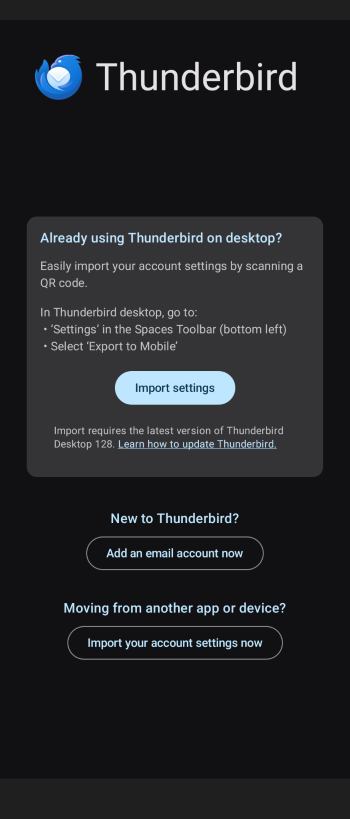
Tap Add a new account.
- Add account
Enter your email address and tap Next.
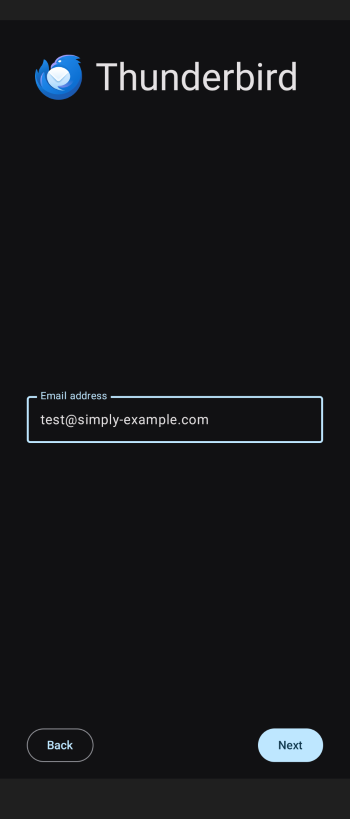
If no Configuration is found, tap Next again to set up manually.
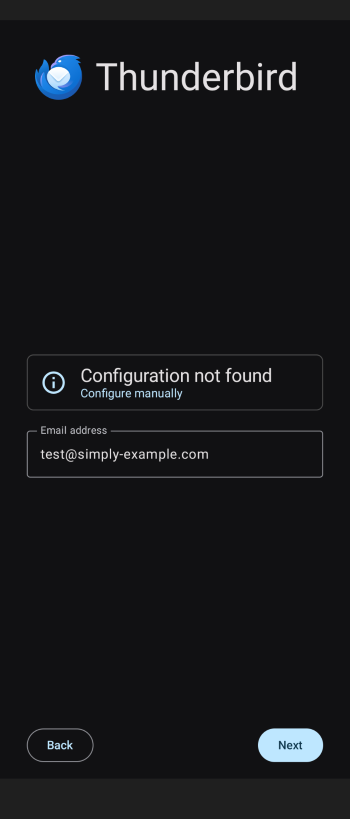
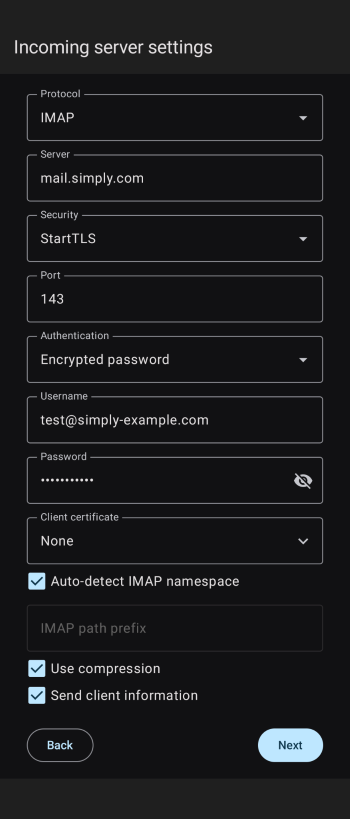
- Enter incoming server settings
Enter the following:
Protocol: IMAP
Server: mail.simply.com
Security: StartTls
Port: 143
Authentication: Encrypted password
Username: Your email address
Password: The password for your email address
Client certificate: None
When you have filled in these details, tap Next.
- Enter outgoing server settings
Enter the following:
Server: smtp.simply.com
Security: StartTls
Port: 587
Authentication: Encrypted password
Username: Your email address
Password: The password for your email address
Client certificate: None
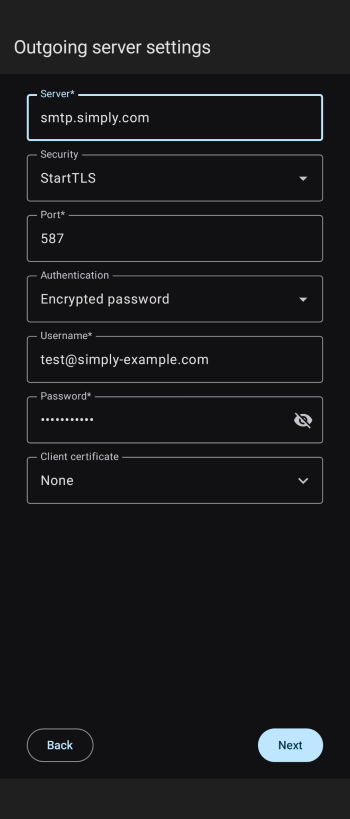
When you have filled in all settings, tap Next.
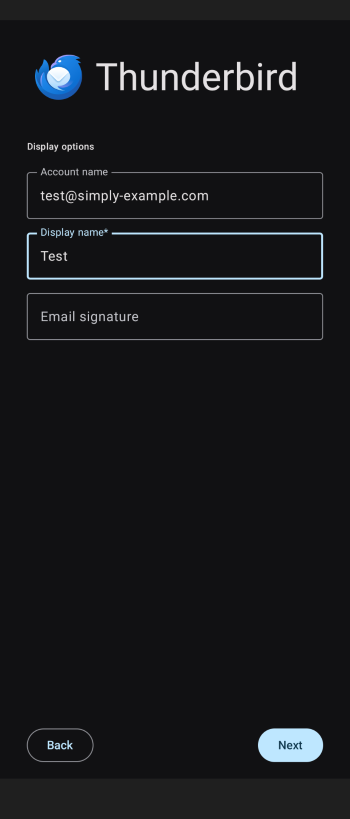
- Display settings
In the next step you can choose which name, among other things, will appear on sent mails, as well as a signature.
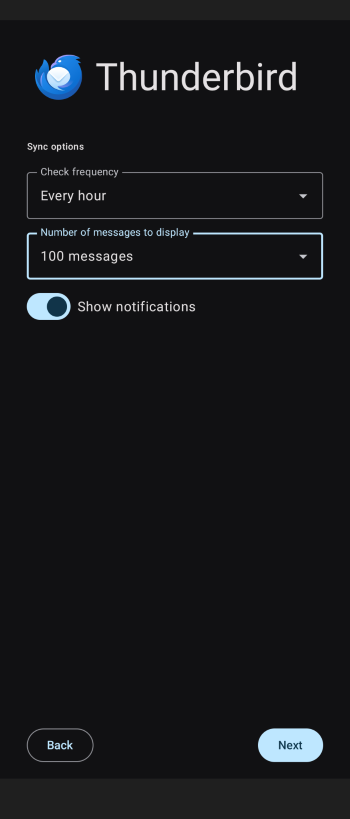
- Sync settings
The final step lets you choose how often the app should check for new mails, and how many mails should be displayed per page.
Article from the support category: Mail
