Setting up FTP connection in Windows 10
-
Open File Explorer. If you can’t find File Explorer, you can click the Start menu at the bottom‑left and type “File Explorer”, or alternatively press the shortcut Win+E
-
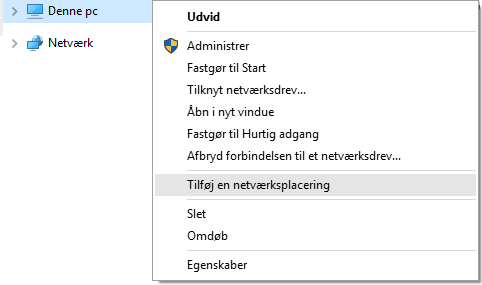
Right‑click on This PC and click Add a network location
-
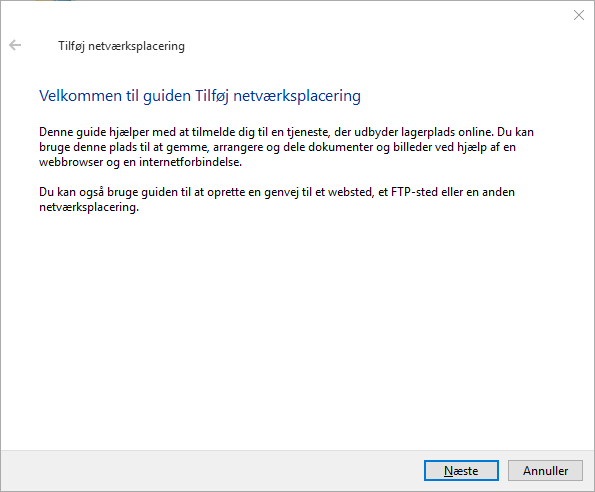
Click Next
-
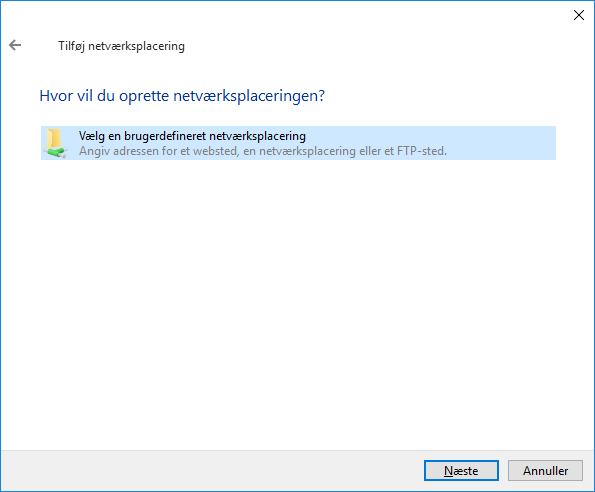
Make sure Choose a custom network location is selected and click Next
-
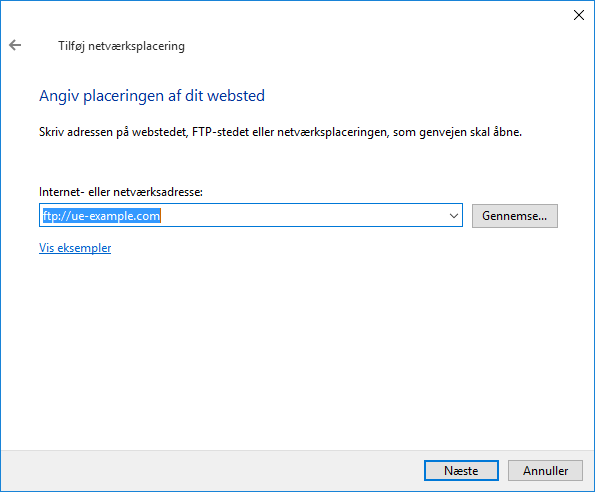
Enter the address for the FTP server. The address is simply
ftp://followed by your domain name, then click Next.In the image below it shows
ftp://ue-example.com, but ue-example.com is just the domain name we use as an example, and you should of course enter your own domain name instead.If it doesn’t work with your domain name, you can instead try entering
ftp://followed by the address of the web server your webhosting is on. You can find the server address under Administration in the control panel on our website. For example, it might beftp://linux1.simply.com
-
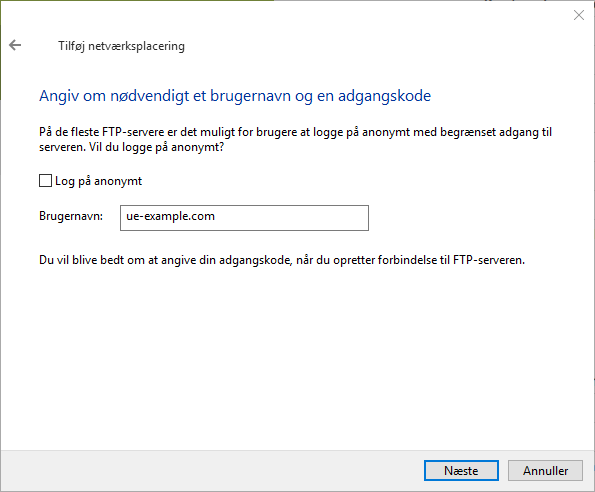
Uncheck the box next to Log on anonymously and enter your FTP username, then click Next.
The username is the domain name of the webhosting you are connecting to. If your webhosting has the domain example.com, the username will be example.com
-
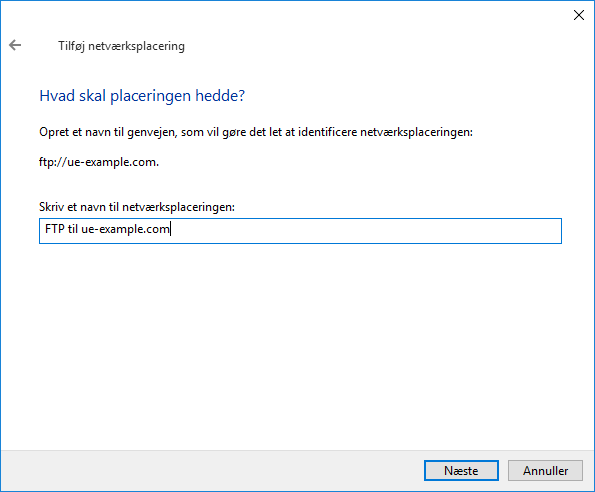
Give the connection a name. The name doesn’t matter; you can simply call the connection whatever you like.
-
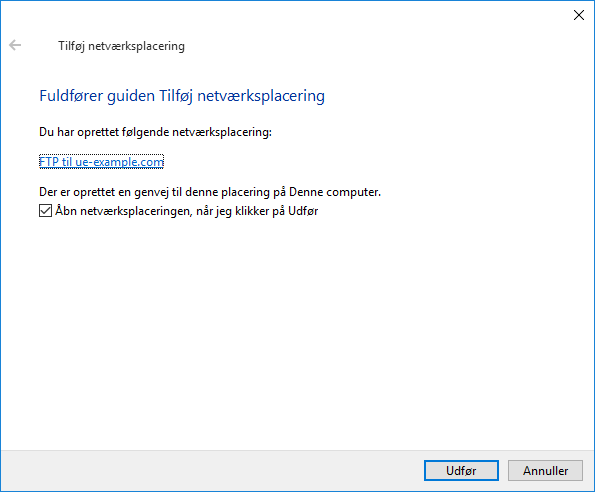
Check the box for Open the network location when I click Finish and click Finish.
-
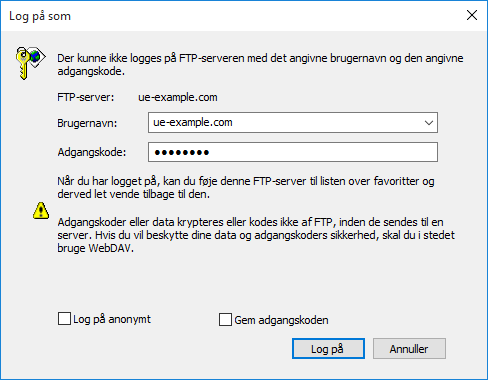
A window will appear asking you to enter a username and password. You can leave the username blank, but enter the FTP password in the Password field and click Log on.
You can choose to tick Save password if you don’t want to type the password each time you use the FTP connection.
If you don’t know the password, you can log into our control panel, click on your webhosting and select Login details. There you can retrieve the FTP password by entering the credentials for your Simply.com account.
-
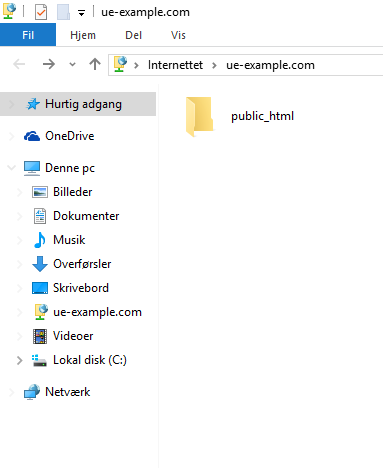
You should now be able to use the FTP connection. You can find it under This PC in File Explorer.
Article from the support category: FTP
