Setting up an FTP connection in macOS
How to set up an FTP connection in macOS Finder using Command‑K, entering ftp://ftp.simply.com and your login details.
-
Open the
Finderapplication.
You can find Finder in your Dock or by searching for Finder in Spotlight Search. -
Click “Go” at the top of the screen and choose
Opret forbindelse til server...
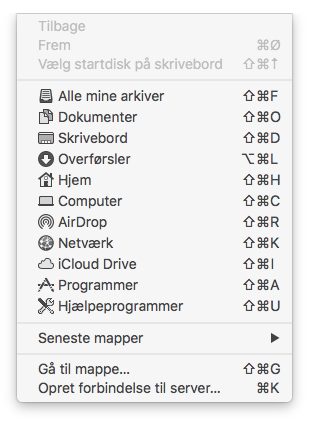
You can also simply press the shortcutcmd + Kinstead -
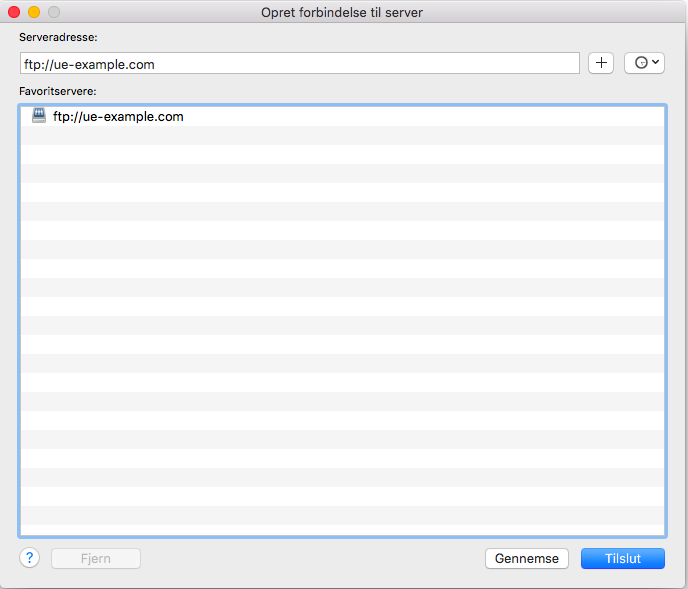
Enter the address for the FTP server. The address is
ftp://ftp.simply.comand click “Connect”.
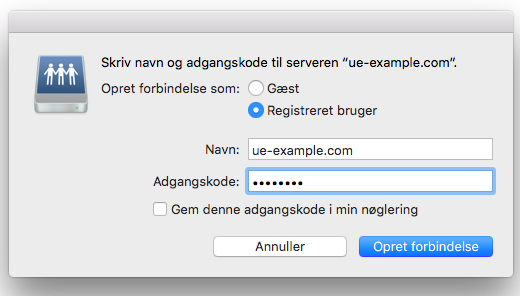
- Set
Opret forbindelse som:toRegistreret brugerand enter the username for your FTP next toNavn:.
Enter the FTP password in theAdgangskodefield in the window and clickOpret forbindelse
The username is the domain name of the webhosting plan you are connecting to. If your webhosting has the domain hjemmeside.dk, the username will be hjemmeside.dk, for example.
If you do not know the password, you can log into our control panel, click on your webhosting and select Loginoplysninger. There you can reveal the FTP password by entering the code for your Simply.com account.
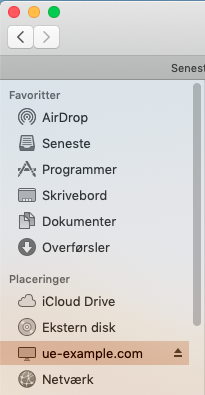
- You will now be able to access FTP via Finder on the left under “Locations”.
Article from the support category: FTP
